
Client Record
The client record on a client's page is built from finalised meetings, attachments and documents, so you can prepare for the next meeting without hunting through old file notes.
You can preview a meeting's changes before they save, edit the record when you know something Claras does not, and reject a change that should not stay.
Record template
The record follows a record template, which is the set of sections Claras fills in. Claras leaves out sections that do not apply to that client.
The practice uses one record template for every client. An owner or practice manager changes it at Settings → Profile, under "Preferences", on "Client record template". Later updates use the new template. Records you already have keep their current structure until you regenerate them.
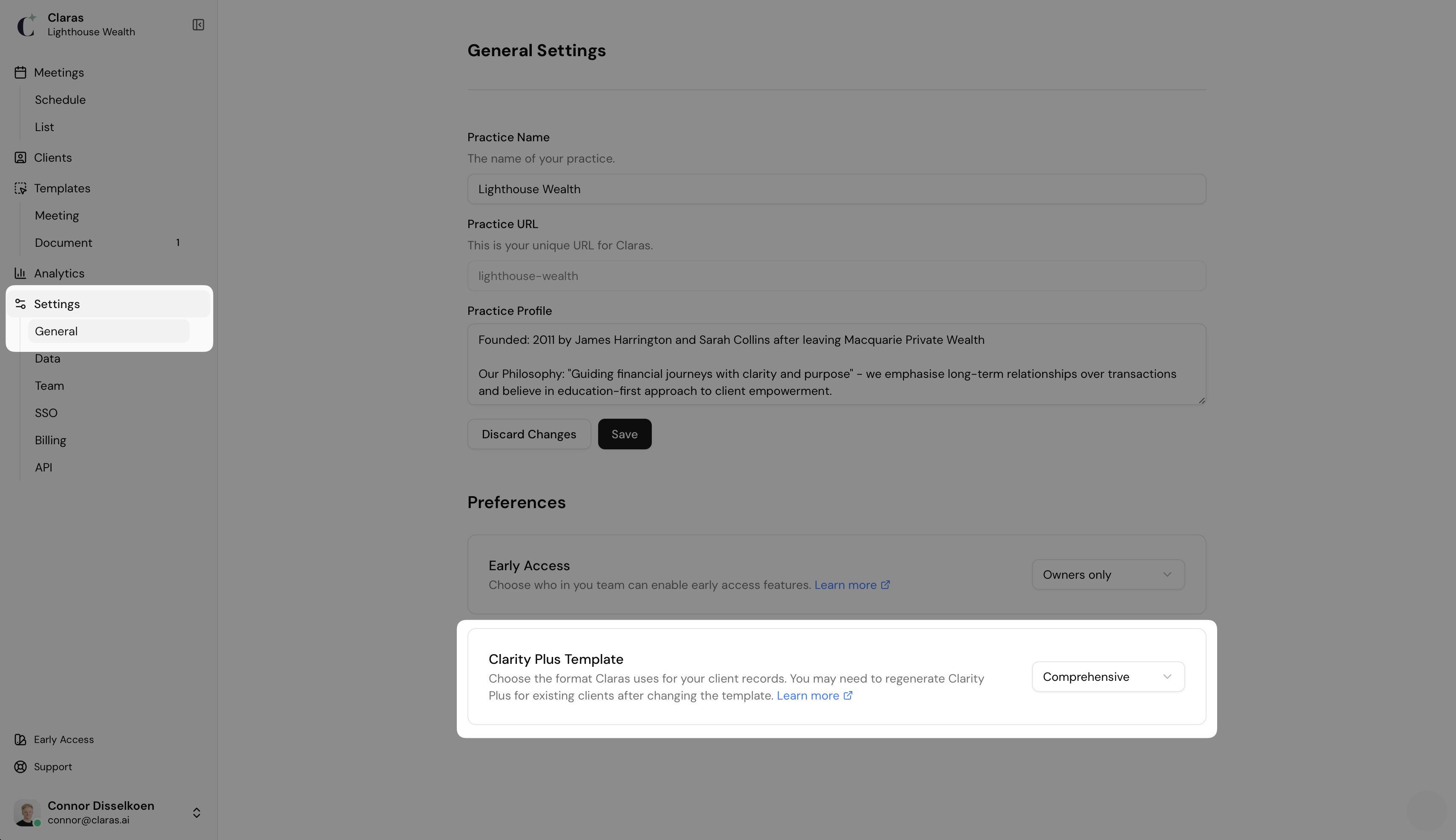
Two record templates are available. Comprehensive is the default. You cannot edit the templates themselves.
Comprehensive
Comprehensive is the fuller record. It has twelve sections:
Their Story. Personal circumstances, lifestyle, values, how you connected, contact preferences, and who can make decisions.
Engagement. How the client takes in information, conversation starters, and sensitive topics.
Scope & Objectives. The agreed advice areas, the client's objectives, and how they rank them.
Risk Profile. Financial knowledge, risk tolerance, and investment preferences.
Financial Position. Assets, income, expenses, and liabilities.
Protection & Insurance. Life, TPD, income protection, and other cover.
Planning Considerations. Tax, estate planning, Centrelink, and health.
Strategies. Current strategies, recommendations, and modelling assumptions.
Advice Evolution. Previous recommendations and what was learned from them.
Progress Tracking. Outstanding actions, current work, completed actions, life events, and review triggers.
Commercial Arrangements. The service agreement, fees, and the professional team.
Compliance. The best interest rationale, key disclosures, and critical decisions.
Classic
Classic is the shorter record, in seven sections:
Financial Situation Overview. Income, major assets, liabilities, and goals.
Risk Profile and Investment Preferences. Risk tolerance and investment approach.
Last Meeting Details. The latest meeting's date, purpose, topics, and agreed actions.
Conversation Starters. Five topics for the next conversation.
Personal Details. Family, pets, hobbies, travel, and significant life events.
To Explore. Five ideas for a later discussion.
Interesting fact. One fact tied to the client's interests, for the next meeting.
From a meeting
When you process a meeting, Claras prepares changes and marks them "Pending". They show on the meeting page beside the file note. They save when you finalise the meeting.
They also save if, before you finalise, you create another meeting for the same client, upload an attachment, or finalise a document. The record then has the latest information for whatever you do next.
From an attachment
Uploading an attachment updates the record when the file is ready. There is no pending step, because there is no file note beside the change for you to review.
Each attachment can be included in the client record or excluded from it. Claras includes a file when it is about the client, and leaves a generic file out. On an attachment that is ready, open the ⋮ menu and choose Include in record or Exclude from record. That choice stays when the record is rebuilt. An excluded attachment is left out of the rebuild.
From a document
Finalising a document updates the record in the same way. The change saves then, rather than waiting as a pending set.
Editing the record
Click into the record on the client page and type. It saves as you go. Claras waits until you stop before it starts an automatic update. If you did not change anything, it leaves the record as it was.
You cannot edit while a meeting still has pending changes, while Claras is generating, or while another team member is editing. The record names the meeting or the person. Finalise that meeting before you edit by hand. Generation usually takes a minute or two.
Preview
When you process a meeting, the pending changes show on the meeting page beside the file note. You can see what will be added or changed before it becomes the record.
Sync now
Sync now is optional. Finalising the meeting syncs pending changes that no longer match the file note. Click Sync now when you want to see that update before you finalise.
The meeting shows "New file note edits detected" when you have edited the file note after processing. The note under it says the changes will sync when you finalise, or you can sync now.

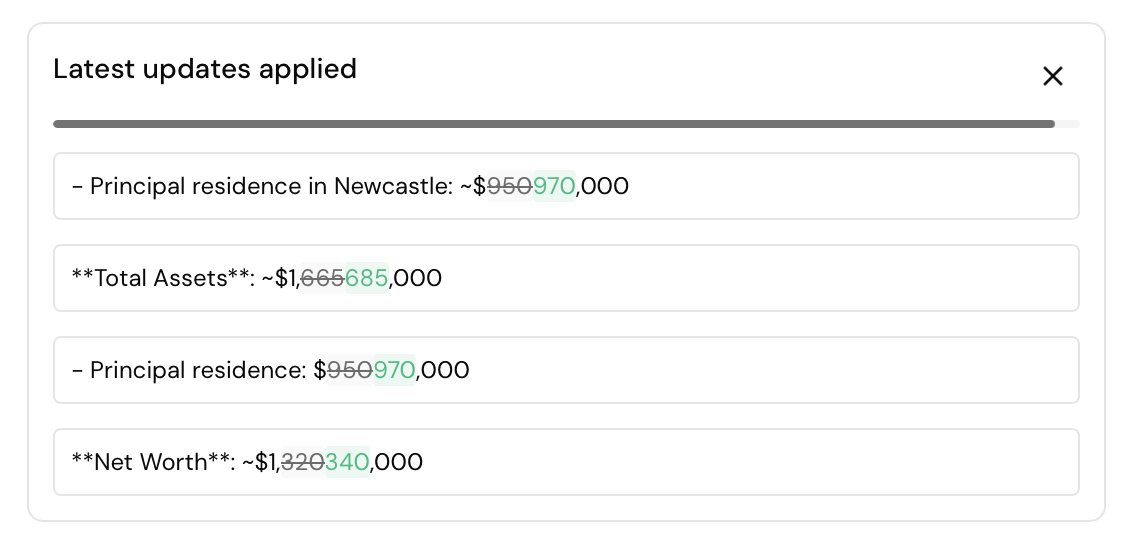
Click Sync now and Claras updates only the parts your edit affected. A summary then shows what changed. Hover the countdown to pause it. Edit the file note first, then sync if you want the preview, or finalise and let Claras sync as it saves.
Refine changes
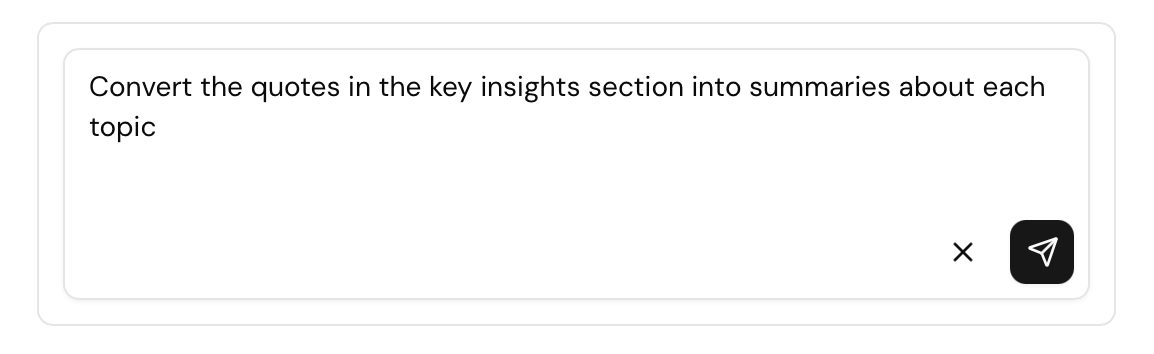
Click Refine changes and describe the adjustment you want. Claras can see the original file note and the edits you have made, the record from before this meeting and the pending version, and the record template the practice uses. You might ask for a summary of what changed, or for a section from the template that is not in the record yet.
Rejecting a change
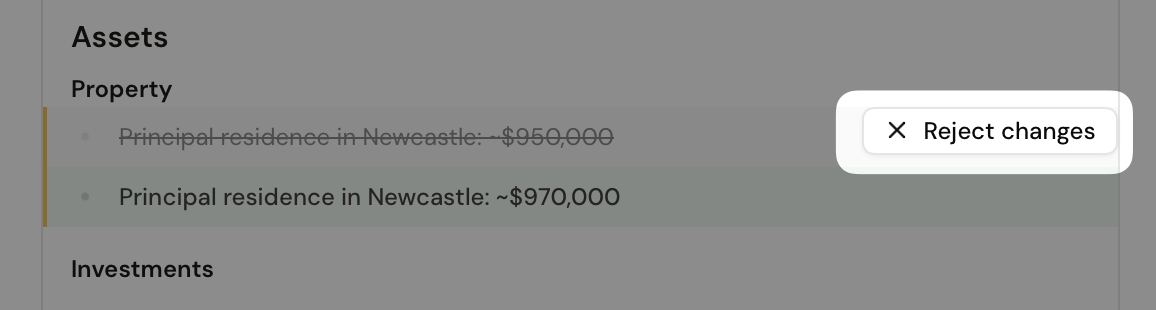
Click Reject changes beside a change to take that change off the pending version. The other changes stay, and the rejected one disappears from the preview.
When pending changes save
You do not save pending changes yourself. They save when you finalise the meeting, when you create another meeting for the same client, when you upload an attachment, and when you finalise a document. You can leave them pending until one of those happens.
Regenerate the record
Regenerate record... is in the ⋮ menu on the client page. It rebuilds the record from the client's meetings, attachments and documents, oldest first. Allow about 1 to 2 minutes for each one.
Regenerating overwrites edits you made by hand. Use it when you have changed the record template and want the new structure, or when you have deleted or corrected the meetings, attachments or documents the record was built from. An attachment you excluded stays out of the rebuild.
Conflicting information
When meetings, attachments or documents disagree, Claras keeps the most recent source by date. Newer information replaces older information.
Older meetings
Some older processed meetings show "No changes yet". The record updates when you finalise the meeting, or you can click "generate a preview now" to create the changes without finalising. Creating a new meeting for the same client finalises those older processed meetings, which also generates the changes.
No updates needed
After Sync now, "No updates needed" means your file note edits did not change anything that belongs in the record. The pending changes already match the file note.
Deleting a meeting
If the meeting was processed and not finalised, deleting it discards the pending changes. They never became part of the record.
If the meeting was finalised, the record keeps what was saved. Deleting the meeting does not take that information back out. Edit the record if you need a line removed.
Reprocessing a meeting
Reprocessing discards the pending changes from the previous run. Claras then generates a new set from the new file note, ready to review before you finalise.
Where Claras uses the record
Claras reads the client record when it writes file notes and documents. Each finalised meeting, included attachment and finalised document adds to that record, and later file notes and documents are written from it.
Version history
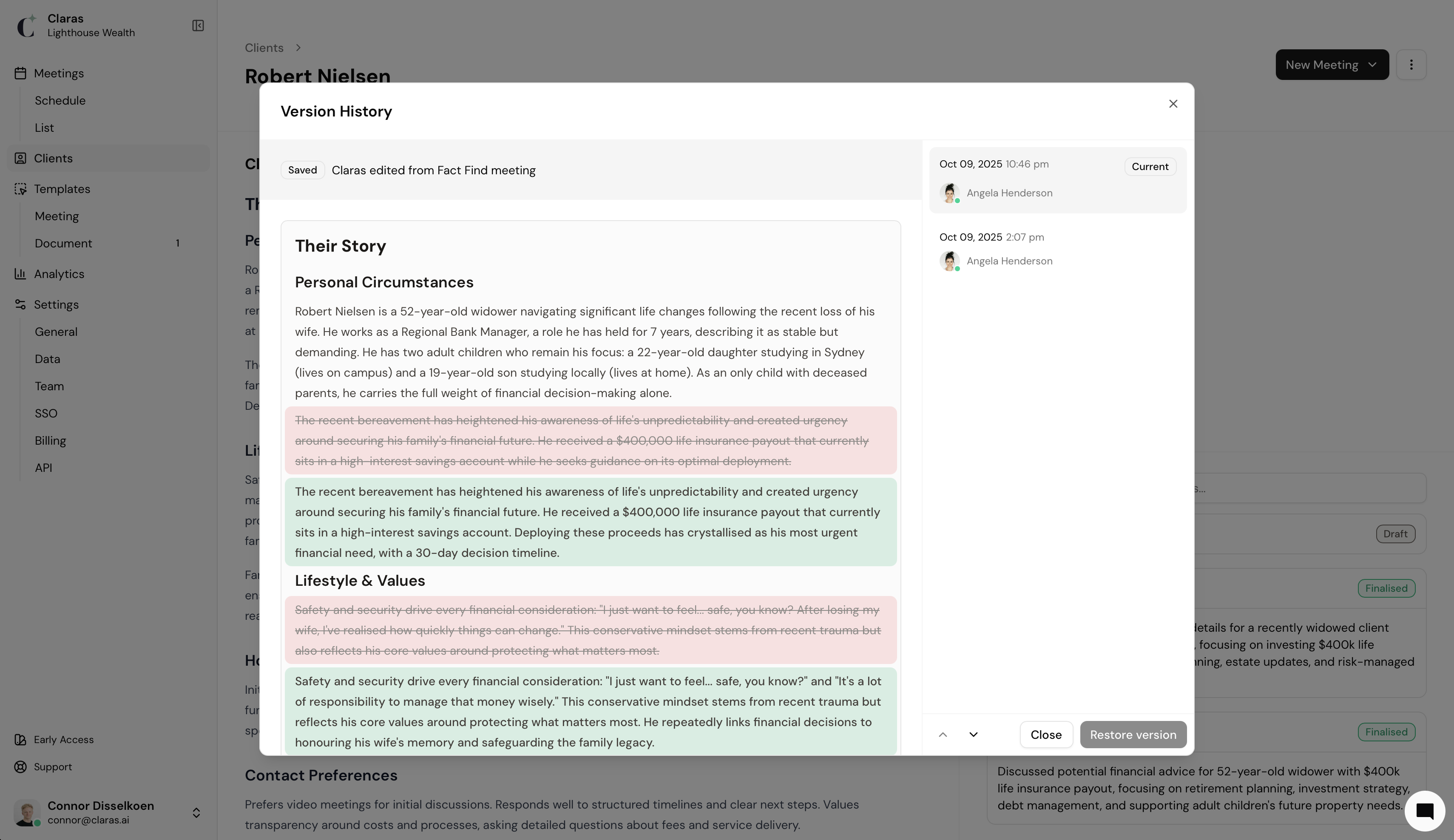
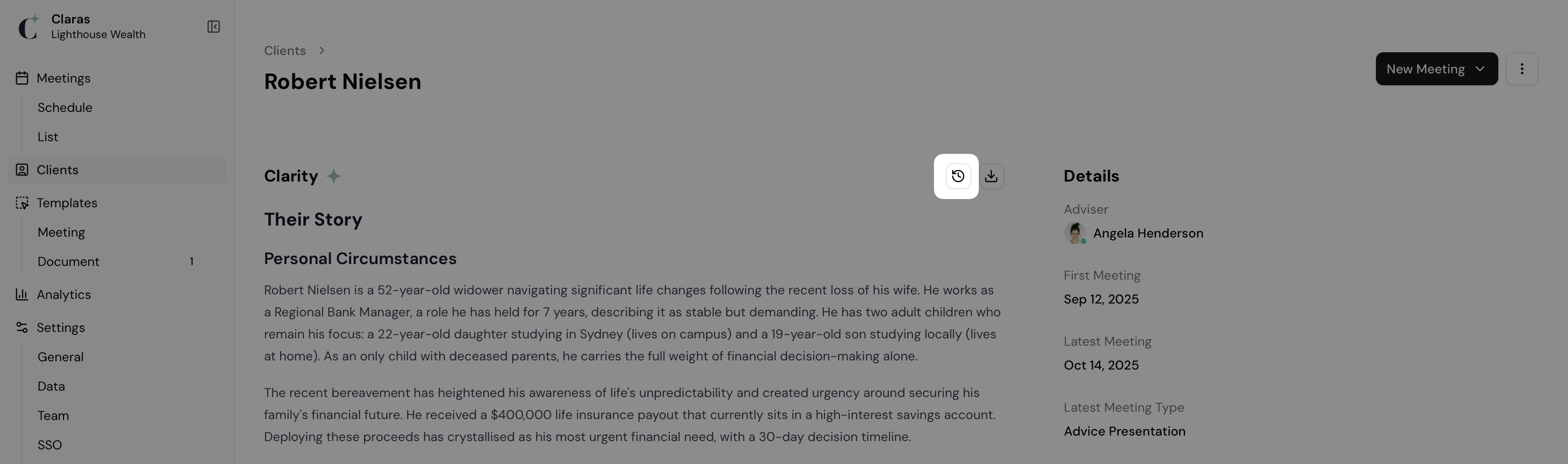
Each save of the client record is kept. Open the ⋮ menu on the client page and choose Version history. The list is newest first. Select a version to see what that save added and what it removed. Previous and Next move through the list.
Restore version saves the selected version as the current record. The older versions stay in the list. Restore is unavailable on the current version, while Claras is still writing an update, and while a meeting still has pending changes.
Last updated 6th November 2026 by Connor