
Client Tags
This guide explains how to create client tags and use them to label, group and filter the clients in your practice.
Owners and managers create and archive tags in Settings → Client tags. Owners, advisers and assistants apply tags to clients from the client record or the clients list.
Overview
Client tags are short labels you define once for your practice and reuse across clients, such as "Prospect", "Review due" or "Estate planning". Each tag has a name and a colour, so a tagged client is easy to spot at a glance. Tags are practice-defined, which means your team decides what they mean and builds the list to suit how you work.
Tags sit in two places. Each client shows its tags on the client record and in the "Tags" column on the clients list. Once clients are tagged, you can filter the list to just the clients that carry a given tag, which turns tags into a quick way to pull up a group of clients. Tags are internal to your practice and are not shown to clients.
Each team keeps its own separate tag library, so a tag created in one team is not available in another.
Create a tag
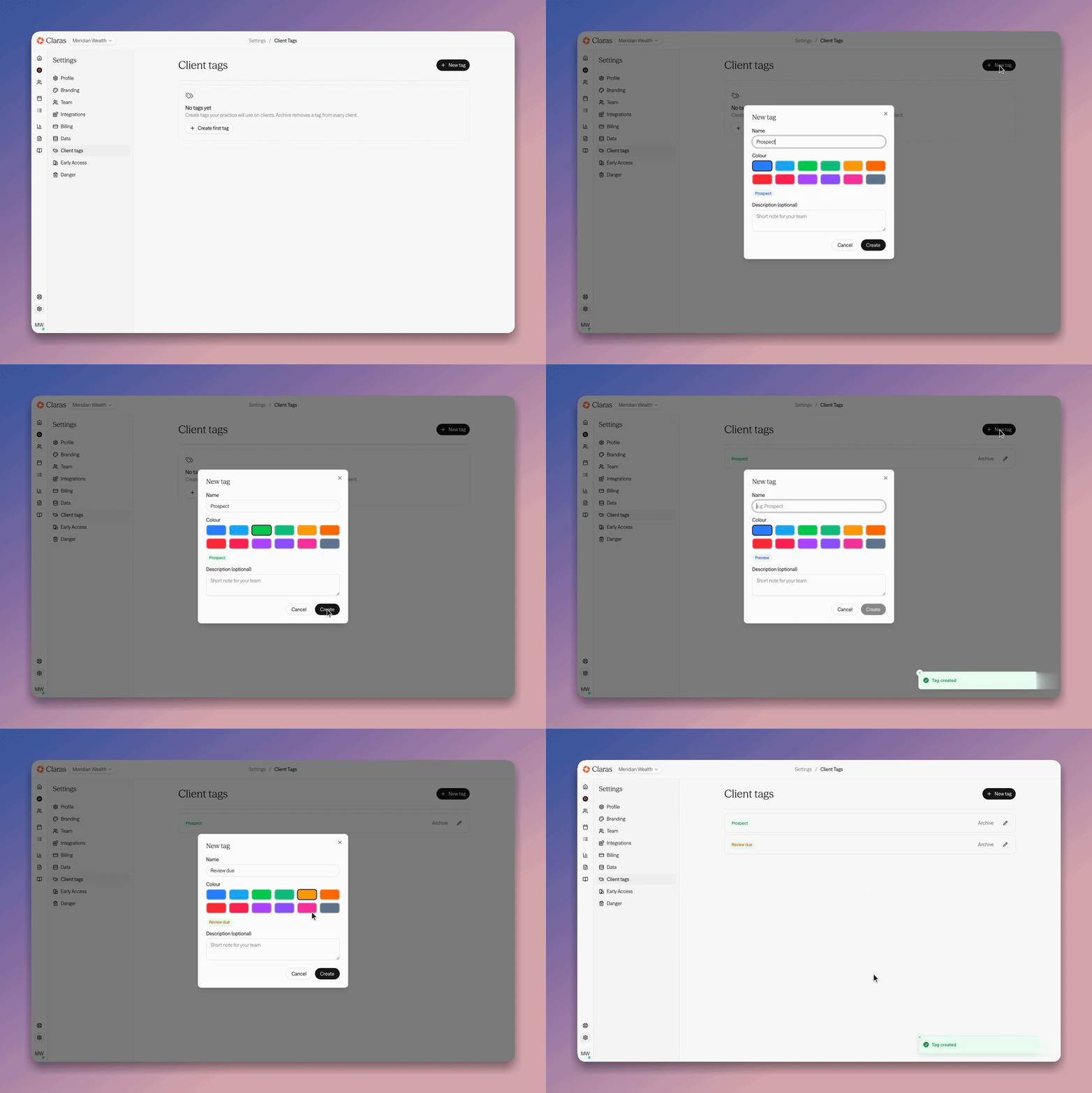
Building the library is a settings task, so you need the "owner" or "manager" role. Go to Settings → Client tags and click New tag. Give the tag a "Name" of up to 80 characters, pick a "Colour", and add an optional "Description" as a note for your team. The badge preview shows how the tag will look. Click Create to add it to the library.
Tag names are unique within your practice, so you cannot create two tags with the same name. To change a tag later, click the pencil icon next to it and update the name, colour or description. Existing clients keep the tag, and a new colour applies everywhere the tag shows.
Apply tags to a client
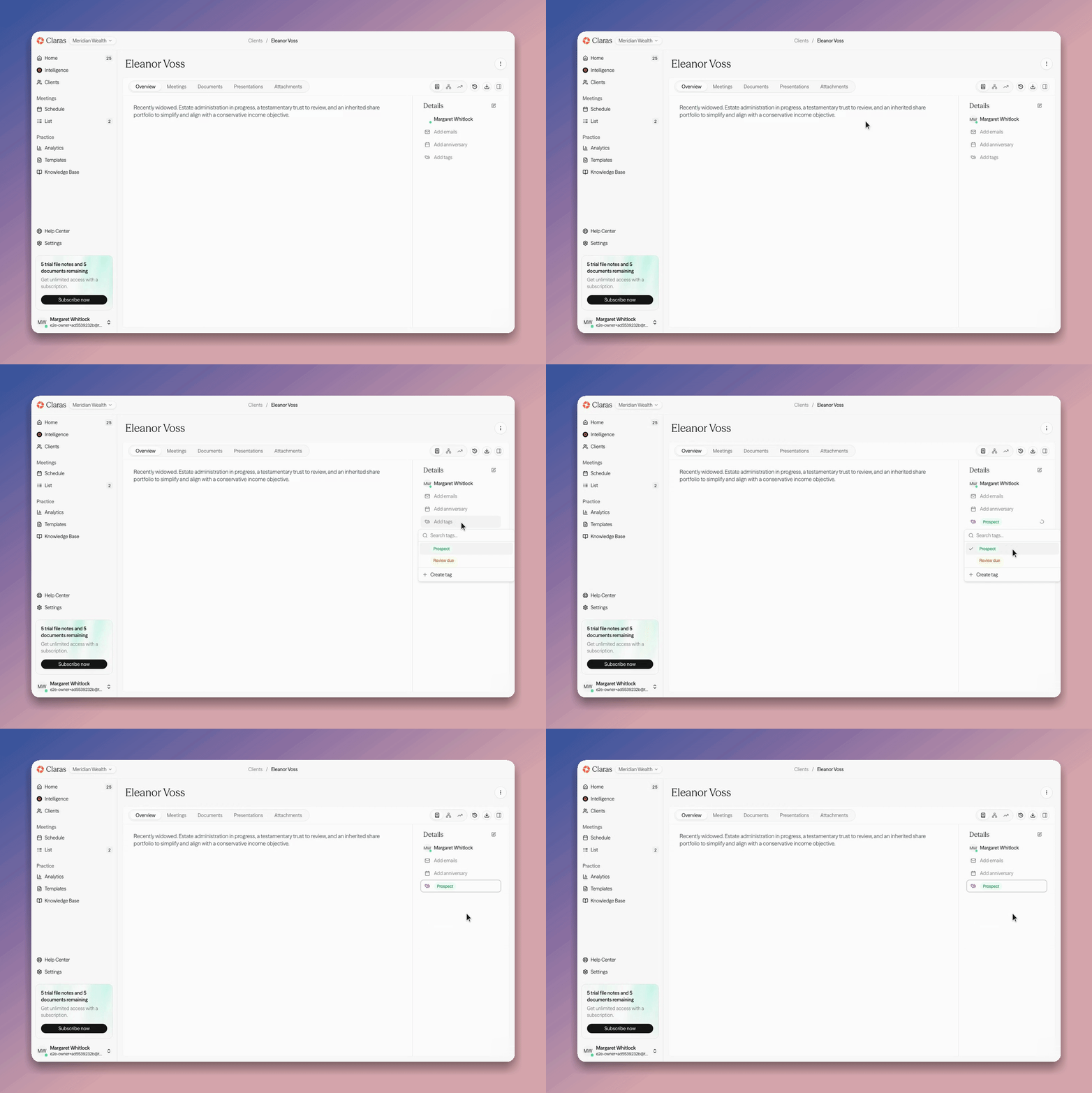
You can tag a client from two places, and both open the same picker. On the client record, find the tags row in the "Details" card (it reads "Add tags" when empty) and click it. On the clients list, click a client's cell in the "Tags" column. Applying tags needs the "owner", "adviser" or "assistant" role.
In the picker, tick a tag to add it and untick it to remove it. Each change saves as you go, so there is no separate save step. Search the picker when your library is long. If the tag you want does not exist yet, click Create tag in the picker to add it to the library and apply it to this client in one step. Close the picker with the Escape key or by clicking away.
Filter clients by a tag
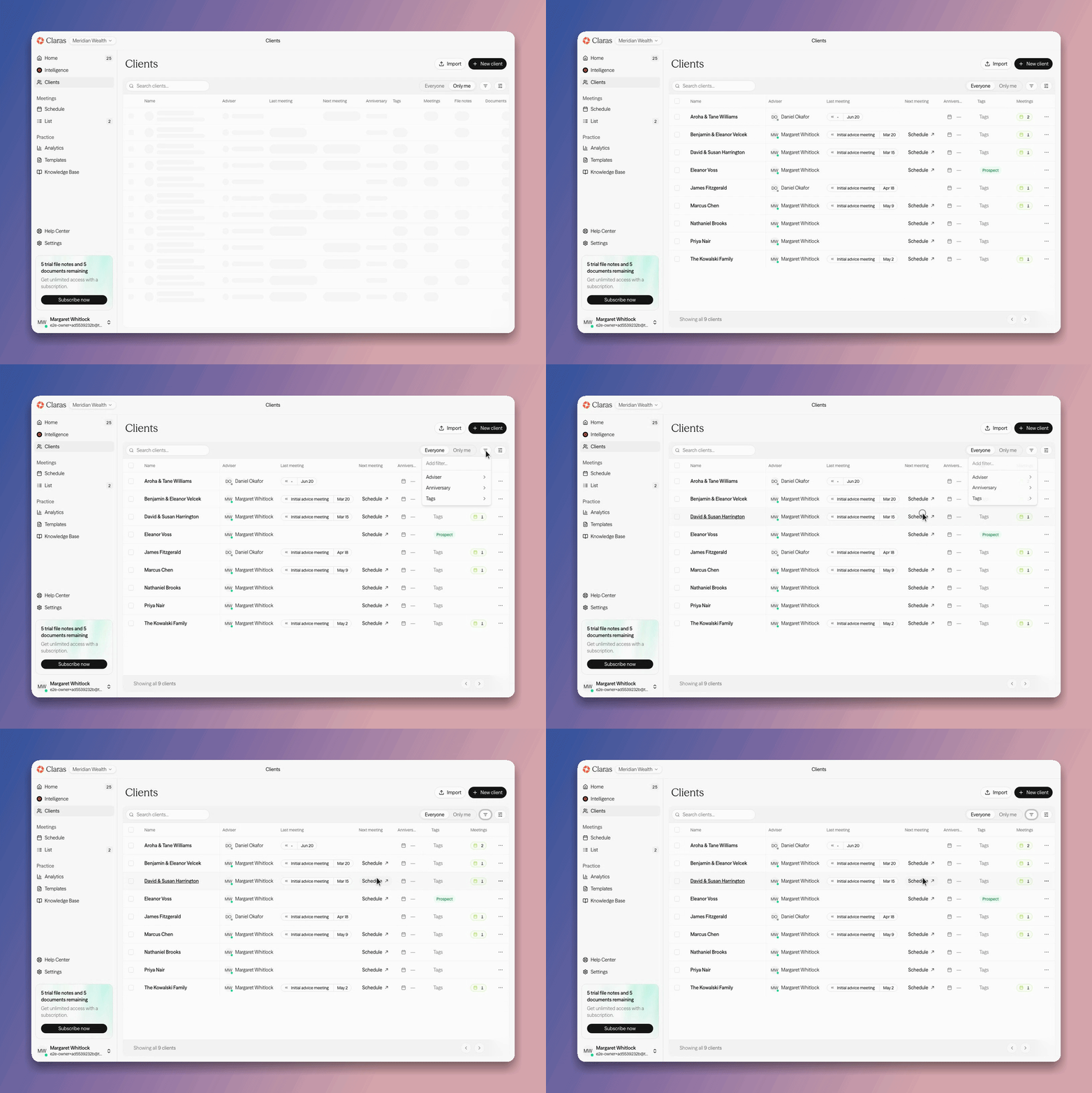
Tags earn their keep on the clients list. On the Clients page, click Filter, choose "Tags", then tick one or more tags. The list narrows to the clients that carry them. Matching is "any of", so a client shows if it has at least one of the tags you picked, not all of them.
The active filter shows as a "Tags" chip. Clear the chip, or use Clear filters, to see every client again. Tag filtering works alongside search and the adviser filter, so you can, for example, show one adviser's prospects. For more on the list itself, see the clients list.
Archive a tag
When a tag has served its purpose, archive it from Settings → Client tags. Click Archive next to the tag and confirm. Archiving removes the tag from every client and hides it from the pickers and filters.
Archiving a tag removes it from every client and cannot be undone.
Client tags FAQ
Who can create client tags?
Owners and managers build and archive the tag library in Settings → Client tags. Advisers and assistants cannot open that settings page, but they can still create a tag on the spot with Create tag while tagging a client. Managers can build the library but do not apply tags to clients.
Can I sort the clients list by tag?
No. You can filter the list by tag and show or hide the "Tags" column, but the list does not sort by tag. Sort by another column, such as the next meeting or anniversary, and apply a tag filter at the same time.
Do my clients see their tags?
No. Tags are internal to your practice. They help your team organise clients and do not appear on file notes, documents or anything a client receives.
Are tags shared across my teams?
No. Each team keeps its own tag library, so a tag you create in one team is not available in another. Create the tags you need in each team that uses them.
Last updated 24th July 2026 by Connor