
Calendar Sync
This guide explains how to sync your Microsoft Outlook Calendar to Claras. Upcoming client meetings are pulled directly from your calendar, so you don't have to create them manually.
How it works
When you enable Calendar Sync, Claras imports your upcoming meetings as placeholders on your Schedule page. Internal meetings, placeholders and calendar noise are filtered out automatically, so only likely client meetings are shown.
When Microsoft Teams meetings are recorded, Claras will automatically import the recording and start processing your file note.
Enable Calendar Sync
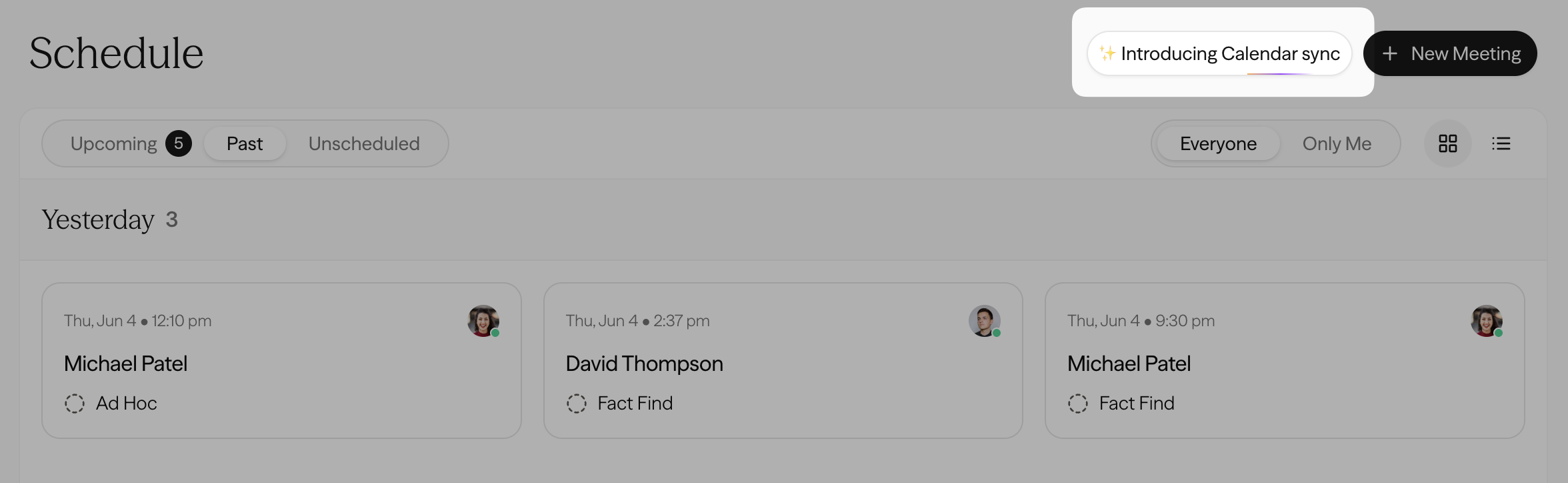
Click the Calendar Sync banner at the top of the Schedule page, and select Enable Calendar Sync.
Authorise your Microsoft account.
The sync will be enabled, and within a few minutes meetings will appear in your schedule. Synced meetings are initially greyed out, waiting for your review.
Meetings that were filtered out are available at the bottom of the Schedule page.
Review synced meetings
Hover over any imported meeting and click Review to confirm the client and meeting type, or click the red cross to reject it and all future meetings with that contact.
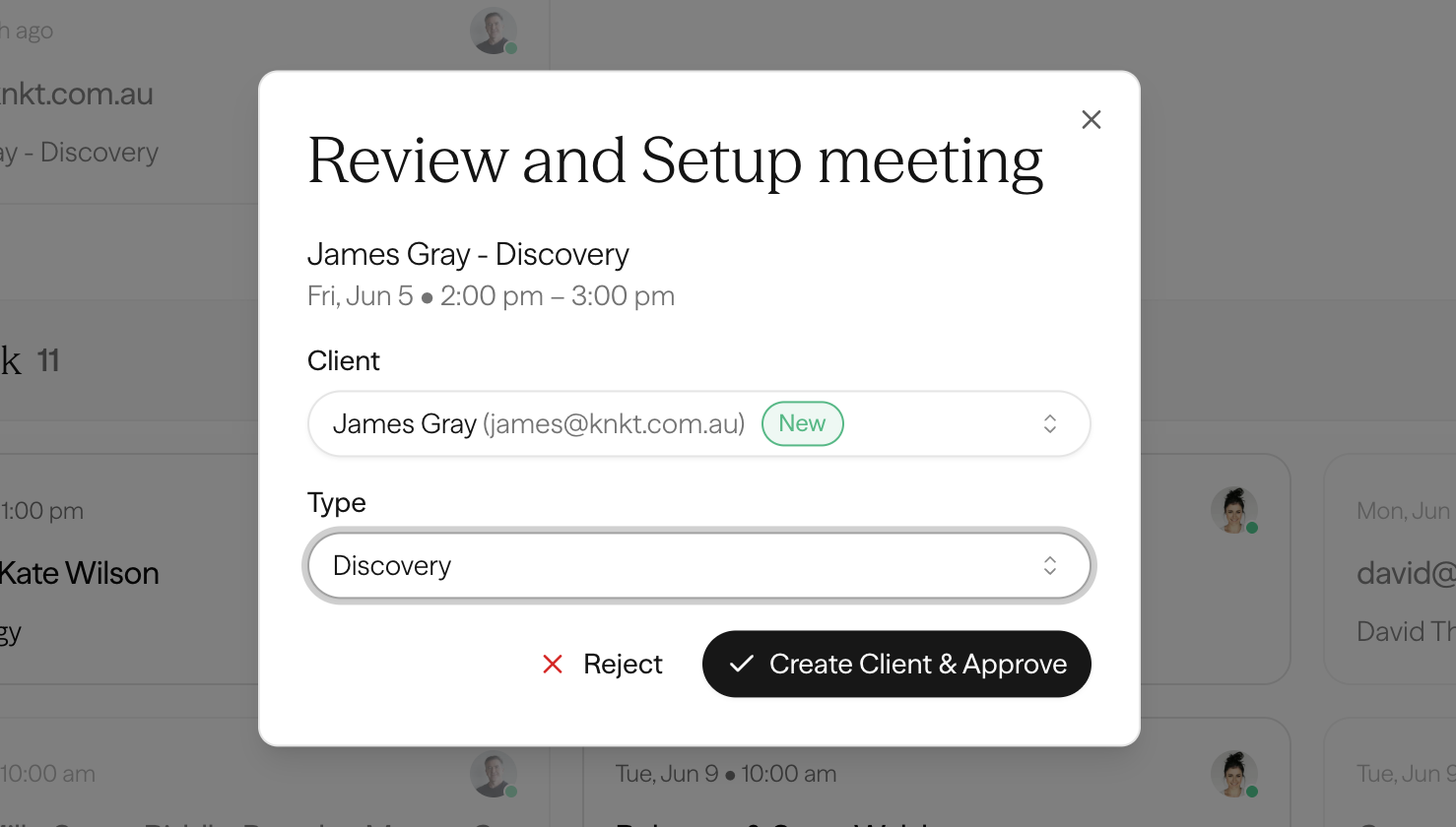
If the attendee email matches an existing client in Claras, their name and meeting type will be pre-filled. Click Create client and approve to automatically approve future meetings with this client.
If the attendee email doesn't match, either:
Accept the suggestion to create a new client; or
Select an existing client from the dropdown.
Automatic Teams processing
If the meeting is on Microsoft Teams, Claras will automatically process the recording and generate a file note. You'll see a "Waiting for Teams recording" message on the meeting while this is in progress.
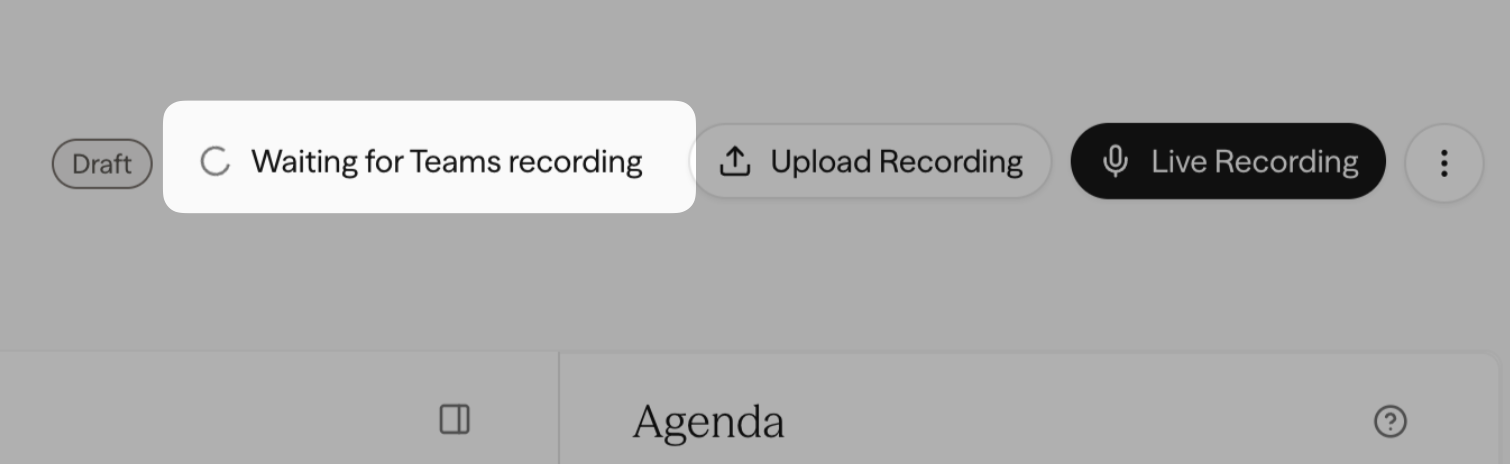
Claras checks for a recording for up to 2 hours from the meeting's start time. If the meeting runs longer than 2 hours, use the Upload Recording button and import the recording from the Teams tab.
Frequently Asked Questions
How far into the future will Claras sync?
All future meetings are imported, and will be automatically be updated or removed if they change.
Does Claras need a client's email address to match calendar meetings?
If the client already has an email address in Claras, it will match instantly. If not, Claras will try to match by name. When no match is found, you'll be prompted to create a new client when you approve the meeting.
What happens if a meeting is cancelled?
Once cancelled or rescheduled in your calendar, meetings in Claras will reflect those changes automatically.
Can my assistant use calendar sync?
Yes. An assistant connects their own Microsoft account and syncs their own calendar, so any client meeting on their calendar appears in Claras whether they organised it or were simply invited. When they approve a synced meeting they choose the lead adviser, who becomes the adviser on the client and the facilitator on the meeting.
There is one thing to check when the lead adviser sends the invites. Microsoft releases a Teams recording only to the meeting organiser and to anyone added as a co-organiser, so ask the lead adviser to add the assistant as a co-organiser on the invite. The assistant can then import the recording as well as see the meeting. See Microsoft Teams for how this works.
How do I disable the calendar sync?
Disable it from Settings → Integrations.
What if Calendar Sync fails to enable?
Your Microsoft connection may have become stale due to inactivity. Go to Settings → Integrations and click the Reconnect button to refresh your Microsoft connection, then enable Calendar Sync again. See the Microsoft Teams article for more detail on reconnecting.
Do meetings booked through scheduling tools import?
Yes. When a client books through a tool such as Calendly, Acuity Scheduling, or Cal.com, the Outlook event often has no ordinary Graph attendee list and carries the client in the invite body instead. Claras reads those booking details and treats the event as a client meeting the same way as other calendar imports. You still review and approve the meeting on the Schedule page before it is confirmed.
Reconnect needed
Calendar Sync depends on your Microsoft connection staying active. If Microsoft requires a new sign in, Claras cannot keep syncing calendar events until you reconnect.
When this happens, Claras shows "Reconnect needed" for the Microsoft integration and may show a reconnect message when you open the app. Follow the prompt to reconnect your Microsoft account, then return to Calendar Sync to confirm upcoming meetings are appearing as expected.
Reconnecting does not remove calendar events or meetings already created in Claras. It restores the connection Claras uses to receive future calendar updates.
Last updated 31st August 2026 by Connor