
Microsoft Teams
This article explains how to connect your Microsoft Teams account.
Connecting
You can connect your Microsoft account from Settings → Integrations in Claras.
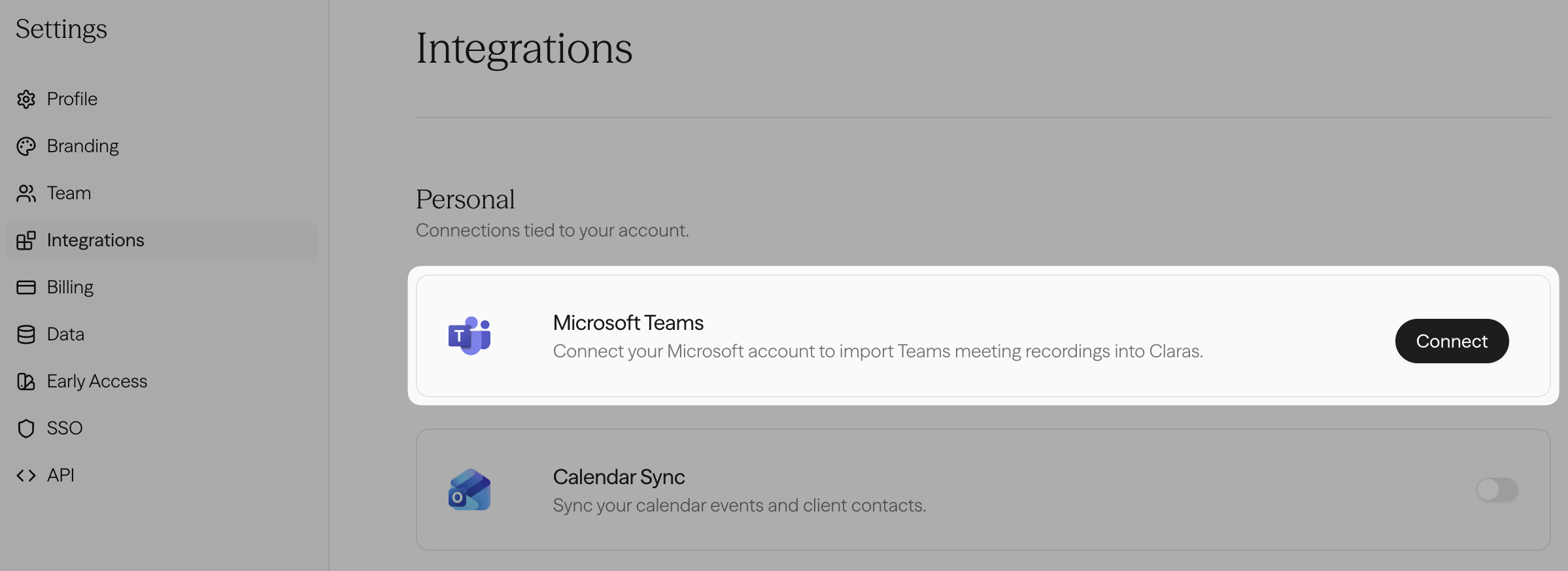
Under integrations, you'll see an option for Microsoft Teams. Click the Connect button to go through the connection flow.
There are three possible situations you may encounter during the connection flow:
Permission already granted
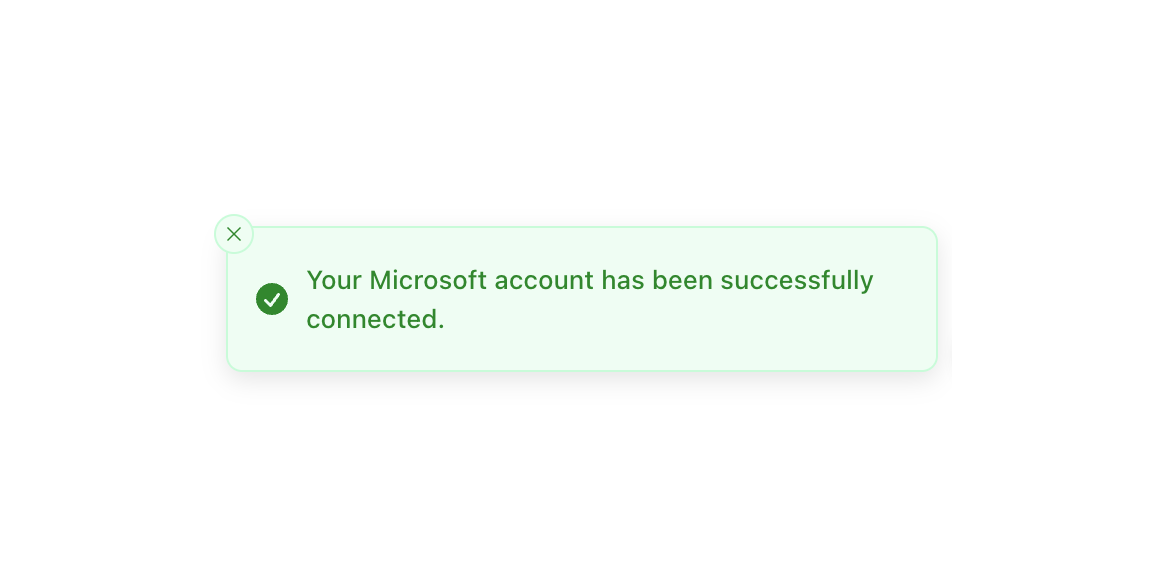
If your admin has already granted permission, it will connect automatically and redirect you back to Claras after a few seconds. If that's the case, the feature will now work and no further action is required from your end.
You can grant permission
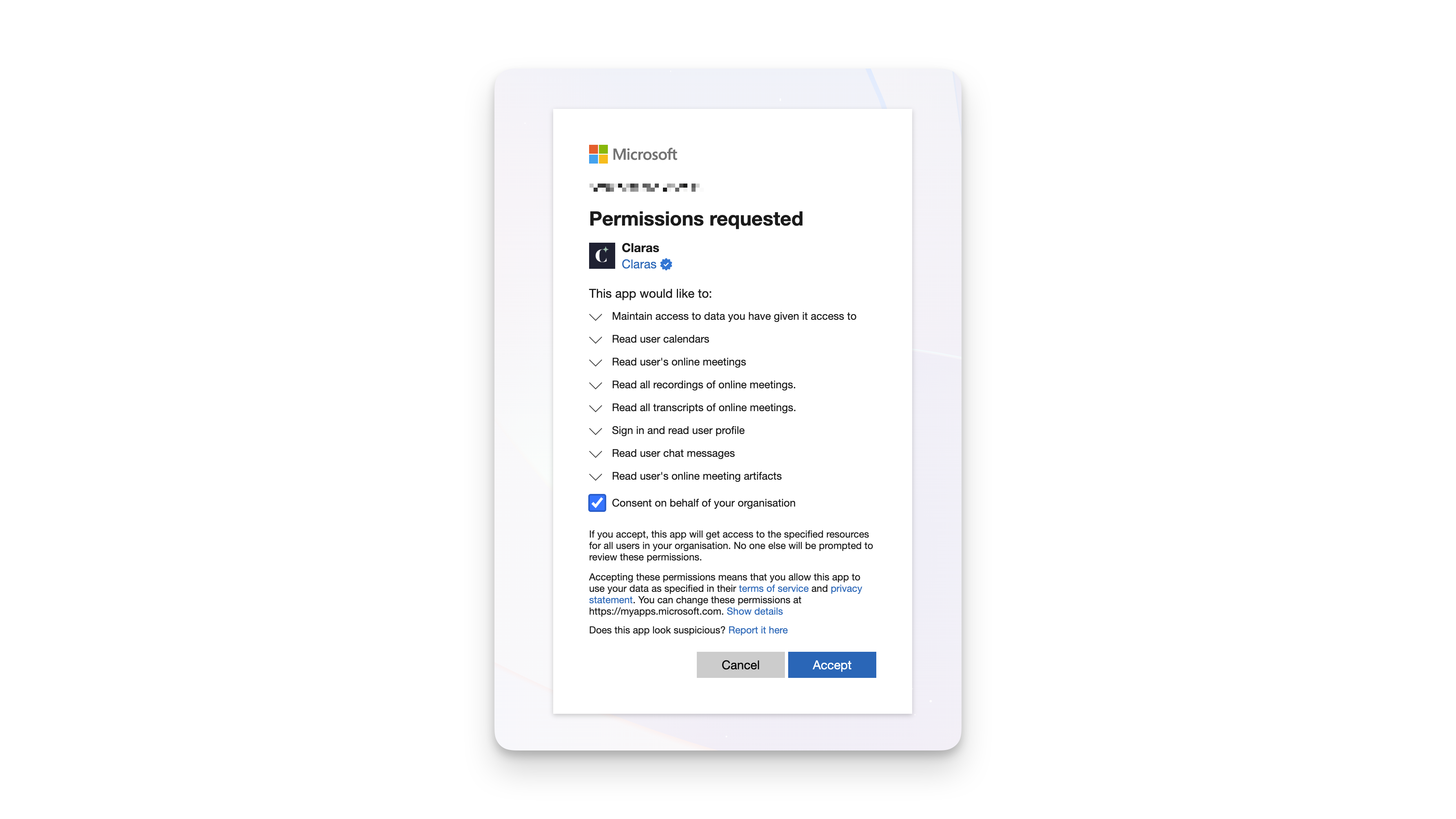
If you're presented with a screen like this, it means you're an admin of your Microsoft account and can grant access to the new permissions.
We recommend checking the "Consent on behalf of your organisation" option if you have other team members in Claras who will use the integration. They'll still need to connect, but it will flow through automatically as mentioned above.
You need your IT admin to approve
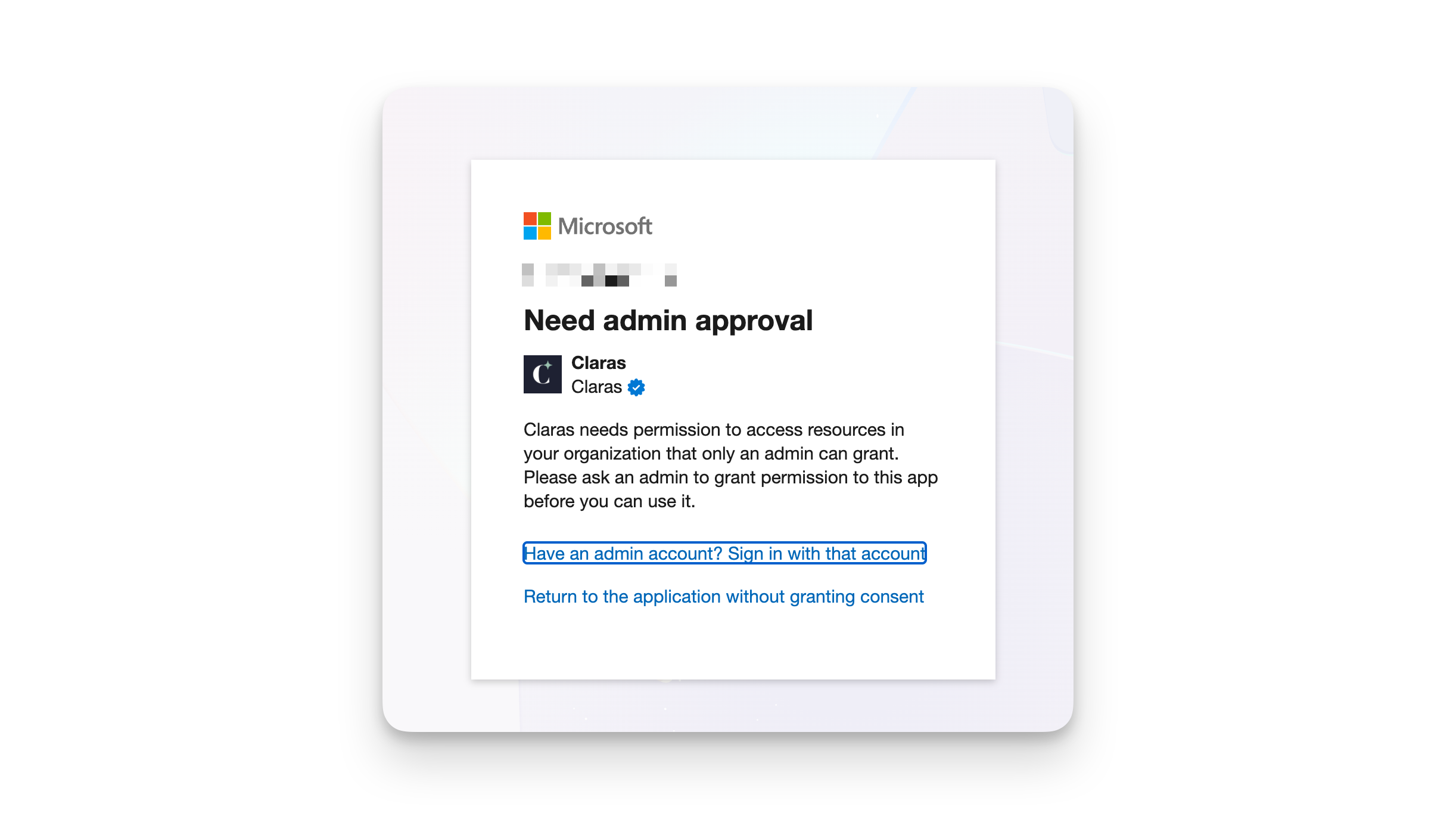
If you're presented with a screen like this, it means you don't have admin access to your Microsoft account. You will need to ask your IT admin to grant access to the permissions. You can send them the link to this article which will help with the process.
Once your admin has granted consent for your organisation, you'll need to go through the connection process again (starting from Settings → Integrations in Claras). It should flow through automatically and redirect you back to Claras.
Granting admin consent
As an admin, you may need to grant or regrant admin consent for the Claras integration. This can be done via Entra.
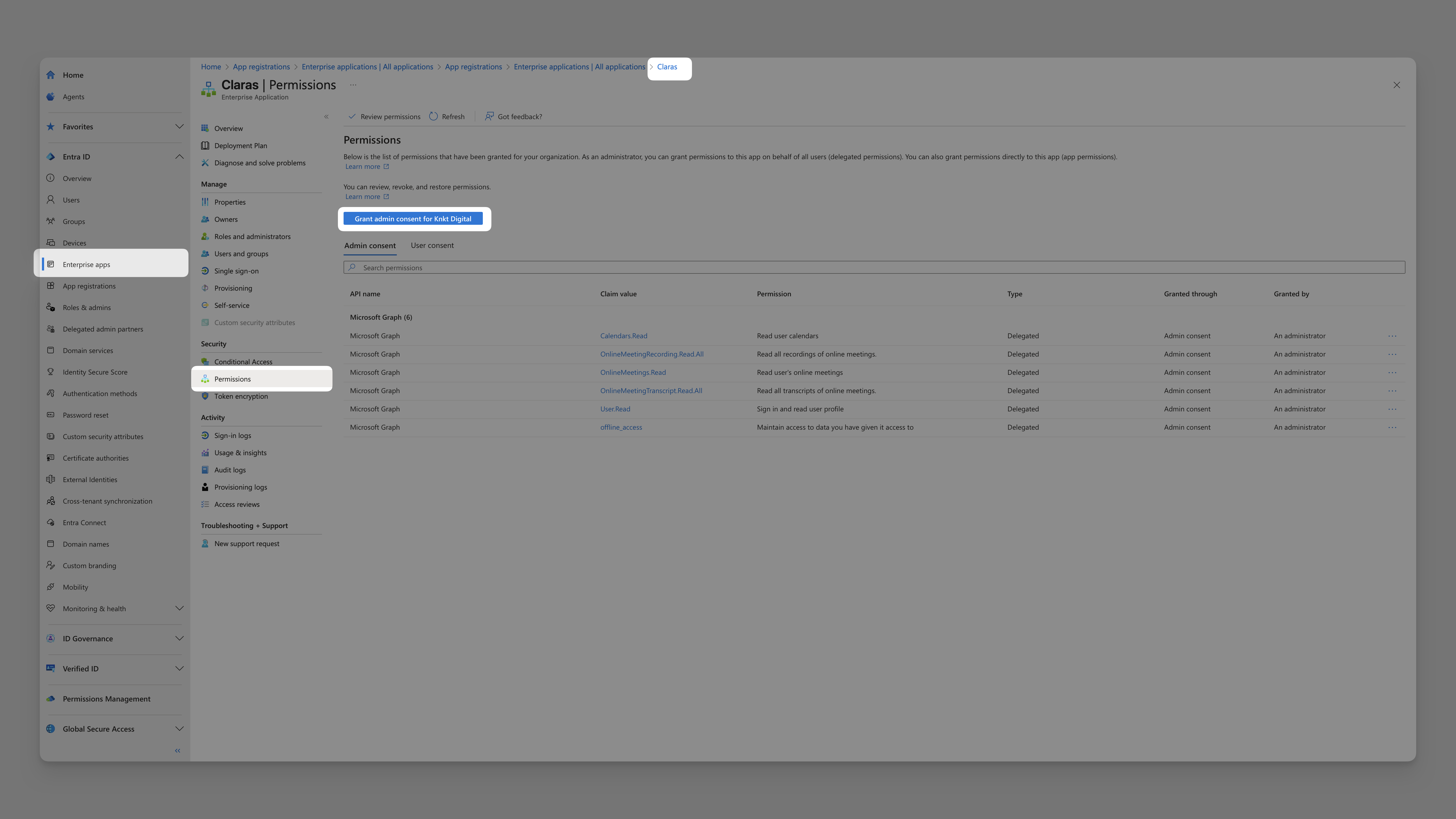
Navigate to Enterprise apps → All applications → Claras → Permissions and click Grant admin consent. Refresh to ensure the permissions (or new permissions) appear, then let your team member know they can go through the connection process again.
Reconnecting
As we release new features, they may require additional permissions to work. You'll see a message in Claras like this:
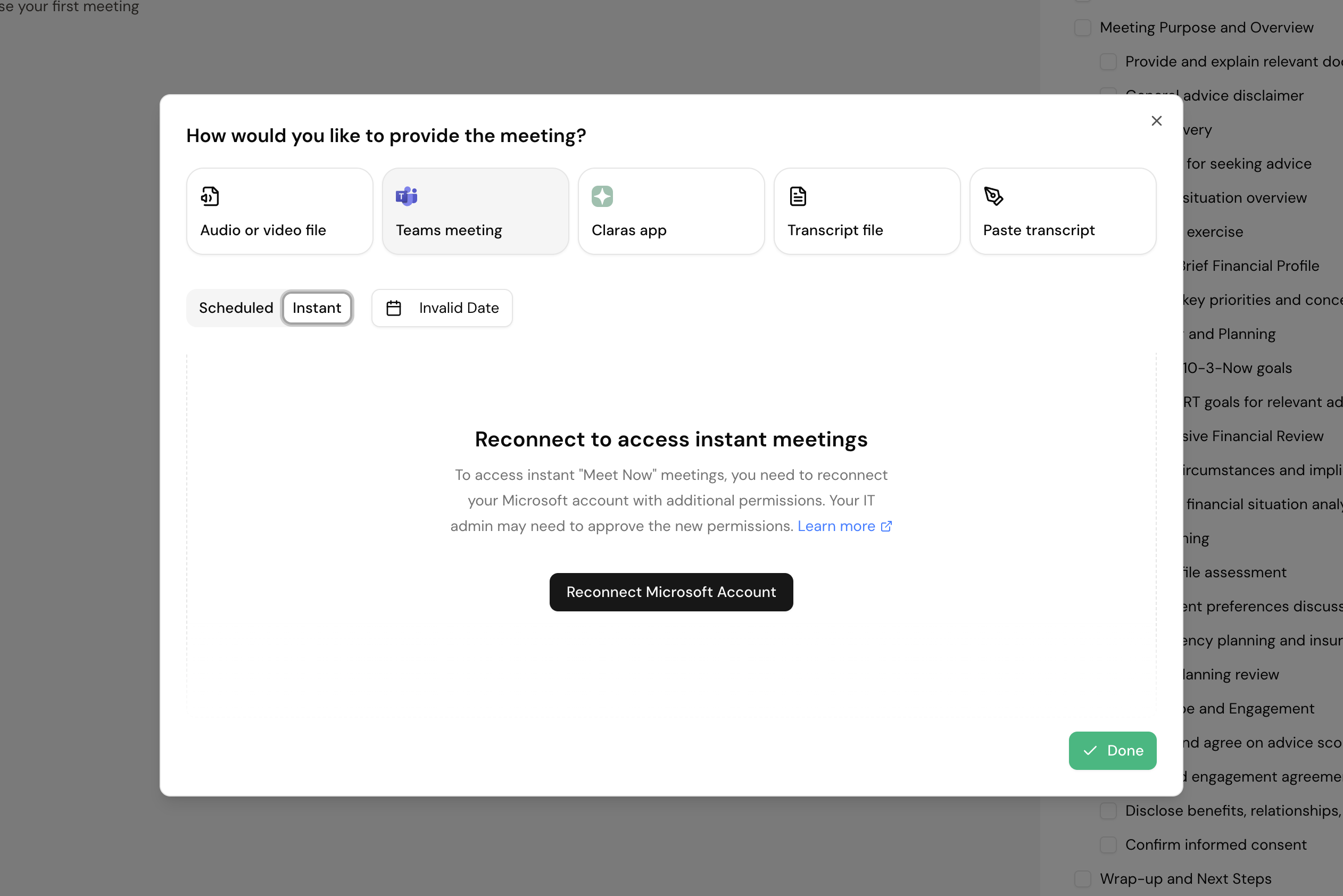
Click the Reconnect Microsoft Account button to navigate to Settings → Integrations. Then click the Reconnect button.
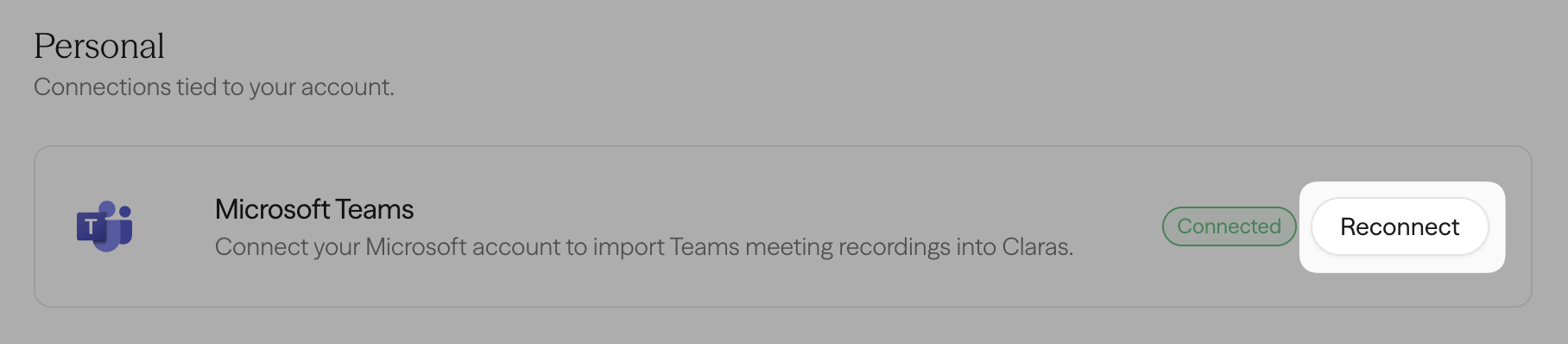
You will go through the same connection flow as mentioned above.
Your Microsoft connection can also become stale after a period of inactivity. When this happens, features that depend on the integration, such as Calendar Sync, may fail to enable or stop working. To resolve a stale connection, go to Settings → Integrations and click the Reconnect button to refresh your connection. Once reconnected, you can enable Calendar Sync or any other features that depend on the Microsoft integration.
Required permissions
Here are the current permissions (also known as "scopes" or "claims") we require for the integration to work, along with an explanation of each.
Permission | Claim Value | Reason |
|---|---|---|
Sign in and read user profile |
| Access basic information such as name, email, and id for api calls. |
Maintain access to data you have given it access to |
| Background processing using refresh tokens. |
Read user calendars |
| Show scheduled meetings. |
Read user's online meetings |
| Show scheduled meetings. |
Read all recordings of online meetings |
| Extract audio to create file notes from recordings. |
Read all transcripts of online meetings |
| Create file notes from transcripts if there's no recording. |
Read user chat messages |
| Show "Meet now" instant meetings. |
Read user's online meeting artifacts |
| Show who attended "Meet now" instant meetings. |
Transcript access
Microsoft added an organisation wide control called "Transcript API access" that decides whether approved apps can read your Teams meeting transcripts. It is turned off by default for every organisation, and Microsoft began enforcing it on 29 July 2026. As a result, practices that were importing Teams transcripts before that date can find they stop arriving, even though nothing changed in Claras or in the way you run your meetings.
Recordings are not affected. If someone selects Record in Teams, Claras still imports the recording and writes your file note from it. Only the transcript is blocked.
What you see in Claras
When you add a Teams meeting to a file note, each meeting in the list shows a badge for its recording and a badge for its transcript. While transcript access is turned off, a meeting that was transcribed but never recorded shows both badges greyed out and cannot be selected, because Claras has no content to work from. Claras shows a notice above the list when it detects this setting.
A blocked meeting looks the same as a meeting nobody recorded, so the natural response is to reconnect your Microsoft account. Reconnecting does not help, because the block sits in your organisation's Teams settings rather than in your connection.
Turning transcript access on
Your administrator makes this change in the Microsoft Teams admin centre, and two separate settings both need to be on before Claras can read a transcript. Go to Meetings → Meeting settings. Under "Transcript API access", turn on "Microsoft Graph access". Then select Configure and turn on "Include speaker attribution".
Speaker attribution matters because Claras asks Microsoft for a transcript that names each speaker, so a transcript without attribution is refused even when Graph access is on. This happens because the file note needs to know who said what to attribute advice to the right person.
Administrators who prefer PowerShell can run Set-CsTeamsMeetingConfiguration -Identity Global -EnableGraphTranscriptAccess $true -EnableAttributedTranscripts $true.
Microsoft can take a few hours to apply a meeting settings change across an organisation. Once it applies, new meetings bring their transcripts across as usual, and transcripts from earlier meetings become available again as long as Teams still holds them.
Speaker attribution
"Include speaker attribution" is a second organisation wide control, separate from the "Microsoft Graph access" setting above. It decides whether an approved app can read a transcript that names each speaker, and your organisation can have one of the two turned on without the other.
Claras always asks for the version that names each speaker, because a file note is more useful when it can attribute what was said to the right person. If your organisation allows transcript access but not attribution, Microsoft refuses that version and Claras imports the plain transcript instead. The meeting still comes through and you still get a file note, and what you lose is the speaker names.
What you see when attribution is off
Claras shows a notice above the transcript on any meeting that arrived this way, so an unattributed transcript is never mistaken for Claras losing the speakers. Meetings imported before the setting changes keep the transcript they arrived with.
Turning speaker attribution on
Your administrator turns this on in the Microsoft Teams admin centre, in the same place as transcript access. Go to Meetings → Meeting settings, find "Transcript API access", select Configure and turn on "Include speaker attribution".
Microsoft can take a few hours to apply the change across an organisation. Once it applies, meetings Claras imports from that point on carry the speaker names again.
Importing a colleague's meeting
Microsoft releases a Teams recording only to the person who organised the meeting and to anyone they added as a co-organiser. This matters whenever one person runs the meeting and someone else prepares the file note, which is how most practices with support staff work.
The fix sits in the Teams invite rather than in Claras. When the adviser creates the meeting, they open the meeting options in Teams and set the colleague as a co-organiser. Microsoft then treats that colleague the same as the organiser, and the recording imports normally.
Without a co-organiser, Claras shows an amber warning on the "Recording" badge for any meeting someone else organised. The warning is a caution rather than a refusal, and most of these meetings do import, so it is worth selecting the meeting and trying. If Microsoft does refuse, Claras tells you that you need to be the organiser or a co-organiser. You can then download the recording from Teams and upload the file to Claras, or ask the organiser to import it.
Frequently asked questions
Why does a Teams meeting show an amber warning on the recording badge?
Because someone else organised that meeting in Teams. Microsoft reserves recordings for the organiser and any co-organisers, so Claras flags the meeting before you select it. The warning is a caution rather than a refusal and most of these meetings still import, so try it first. To clear the warning for good, ask the organiser to add you as a co-organiser on the invite.
What does "The mailbox is either inactive, soft-deleted, or is hosted on-premise" error mean?
This error comes from Microsoft directly, not from Claras. It means there is a problem with the mailbox provisioning on your Microsoft 365 tenant. Common causes include the Microsoft 365 licence not including Exchange Online, the licence being expired or temporarily removed, the Exchange Online mailbox being soft-deleted, or the organisation running a hybrid Exchange (on-premise) setup. This error often appears after a security action such as resetting a Microsoft account or revoking all sessions.
To resolve the error, contact your IT admin and ask them to verify that the affected Microsoft 365 account has an active Exchange Online licence and that the mailbox is provisioned and not in a soft-deleted state. Once your IT admin has confirmed the mailbox is active, disconnect and reconnect your Microsoft Teams account from Settings → Integrations in Claras.
How do I fix the ‘Need admin approval’ message when connecting Microsoft Teams to Claras?
Ask your IT admin to follow these steps to approve the application in the Teams admin centre.
Navigate to the "Admin consent requests" area under "Enterprise applications" in Entra
Search for Claras.ai using the application ID:
c85e582e-b6dc-496b-b119-c6b2ba80556eIf that doesn't work, the admin might need to go through the connection flow in Claras:
Invite your admin into your practice as a Practice Manager
Connect their Teams account from Settings → Integrations
They'll then be able to grant access for the organisation
If the application still cannot be found, verify that you are using a business account rather than a personal Microsoft Teams account.
Why have my Teams transcripts stopped importing?
The most likely cause is the "Transcript API access" control described above, which Microsoft turned off by default for every organisation and began enforcing on 29 July 2026. Your connection and permissions can be perfectly healthy while transcripts are blocked, so check that setting before reconnecting.
Reconnect needed
Sometimes Microsoft requires you to reconnect Claras. This can happen after a password change, security policy update, permission change, or Microsoft token expiry.
When Claras detects that your Microsoft connection can no longer be refreshed, the integration card shows "Reconnect needed" and Claras may show a reconnect message when you open the app. Select the reconnect action and sign in with the same Microsoft account you use for Teams meetings.
Reconnecting restores Claras access to the Microsoft services used for Teams recordings and transcripts. It does not delete existing meetings, recordings, transcripts, or file notes already saved in Claras.
Last updated 31st August 2026 by Connor