
Invite your Team
Having your whole team in Claras gives everyone a shared view of clients and processes. With common templates and agreed workflows, your practice operates from the same page, applying the same standards across all meetings, file notes, and documents.
This page covers:
Inviting your team
Security requirements
Roles and permissions
Editing a team member's details
Invite team members
We recommend inviting support staff (they're called "Assistants" in Claras) and other advisers right away. This way, you'll experience the full workflow and see how Claras supports collaboration across your practice.
Go to Settings > Team
In the Invite Team Members section
Enter one or more emails
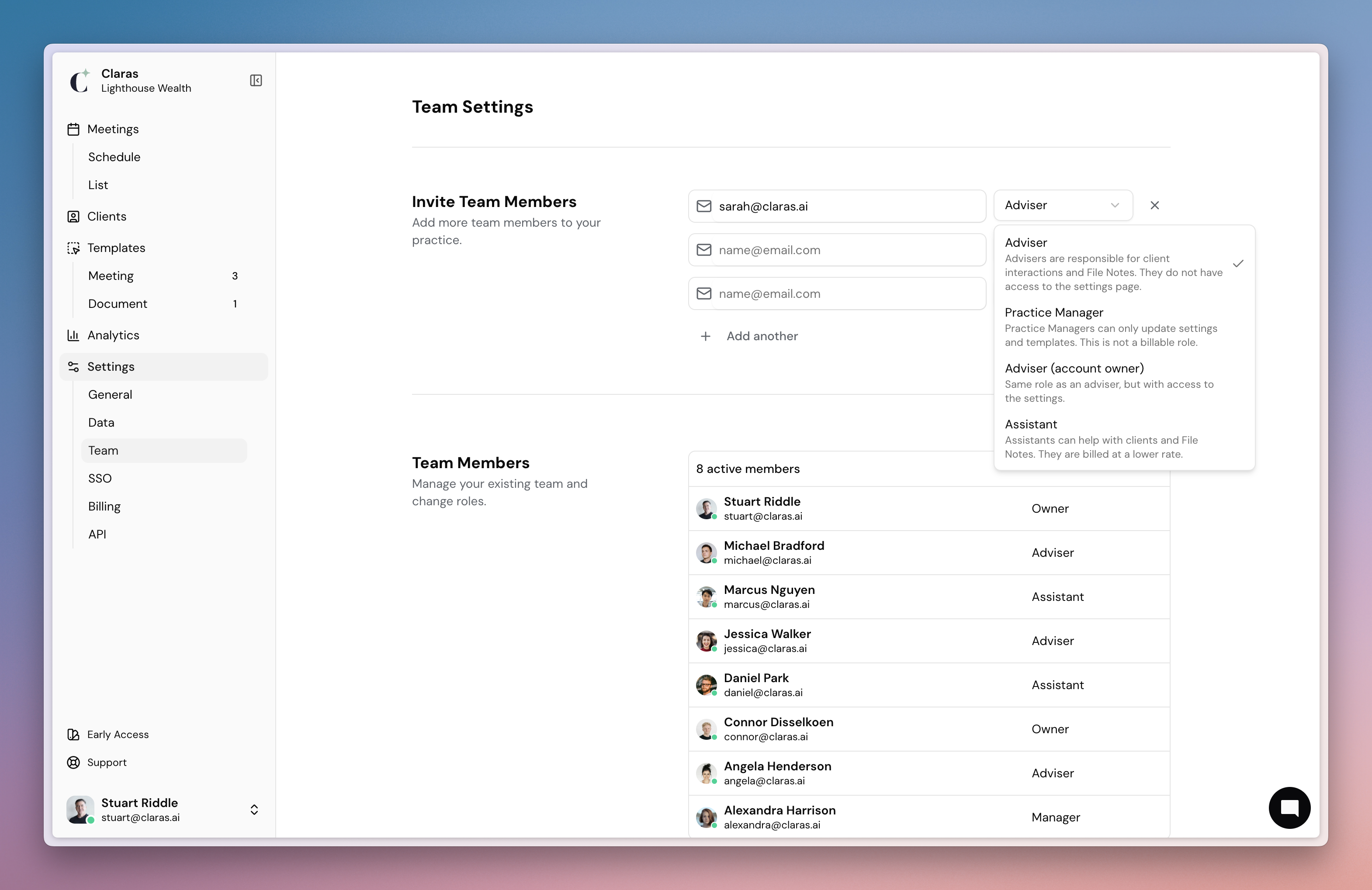
Choose their role from the drop-down menu
Click Invite users
Claras will send them an email with instructions to join
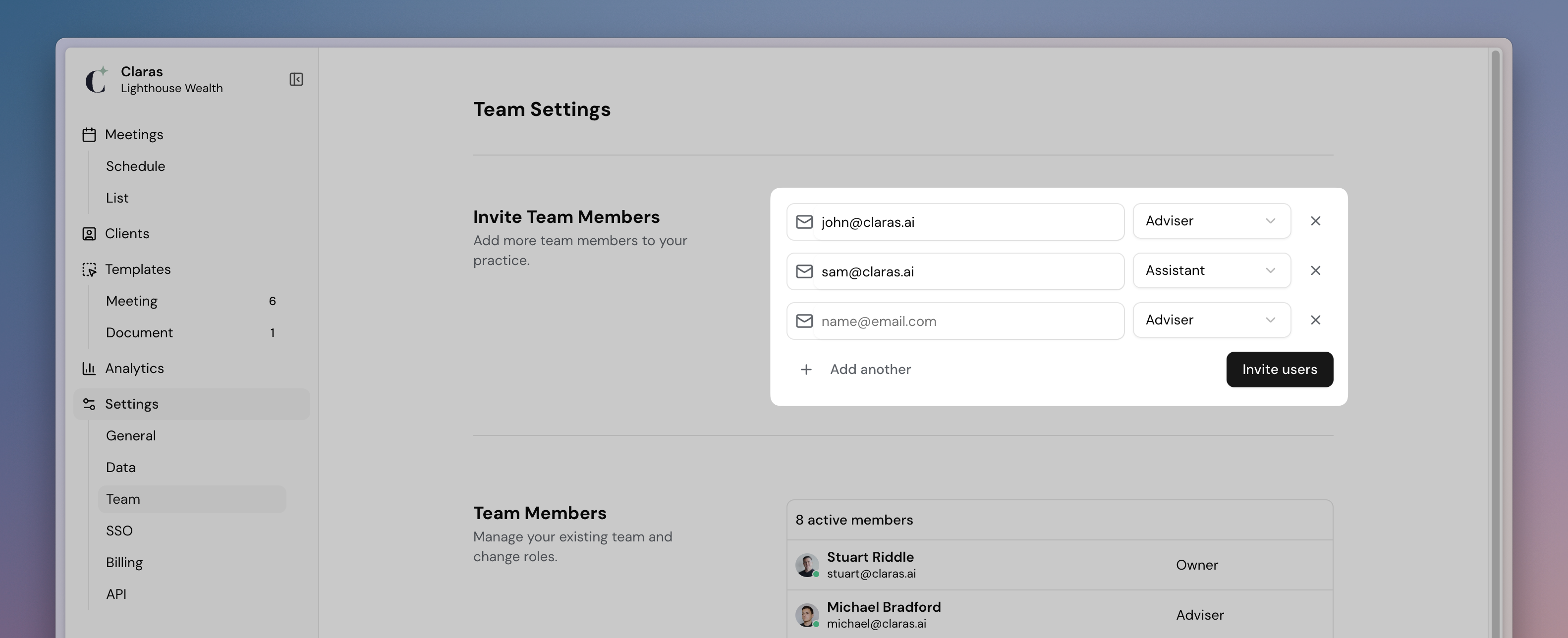
When you’re on a trial, any advisers you invite will also receive 5 free file notes, so you can test Claras across your whole team without limitation
If you're subscribed to Claras, you’ll be shown a confirmation of the pricing change
Security requirements
Multi-factor authentication (MFA) is required for all users. Each team member will need to set up an authenticator app (such as Google Authenticator or Microsoft Authenticator) during their first login, and any time they change devices.
Roles and permissions
Roles define what each team member can see and do in Claras, helping you maintain a shared client view while protecting sensitive settings and information.
Page | Owner | Adviser | Manager | Assistant |
|---|---|---|---|---|
Clients | ✅ | ✅ | ✅ | |
Meetings | ✅ | ✅ | ✅ | ✅ |
Documents | ✅ | ✅ | ✅ | |
Templates | ✅ | ✅ | ✅ | |
Analytics | ✅ | ✅ | ||
Settings | ✅ | ✅ | ||
Enterprise (API & SSO) | ✅ | ✅ |
Adviser/Owner – Full access to all functions
Adviser – Can create and manage client meetings, file notes, and documents, but has limited administrative access
Practice Manager – Can manage practice settings, templates and team access without directly managing client records
Assistant – Can view and manage client information, schedule meetings, create documents and handle post-meeting admin without access to practice settings
Assistants vs Advisers
A common question is "what's the difference between the assistant and adviser role?". Assistants run the full meeting workflow, so an assistant can:
Create meetings and manage client records
Upload a recording, paste a transcript, or import a Microsoft Teams meeting
Start processing and produce the file note
Create documents and handle post-meeting admin
Currently assistants cannot:
Be assigned as the primary adviser for clients
Be set as the meeting facilitator
Record a meeting live inside Claras, although they can upload a recording made elsewhere
Create or edit templates
Practices that work in pods usually pair one adviser with one assistant. The adviser sends the invite, runs the meeting and stays the facilitator, and the assistant imports the recording and prepares the file note. When the meeting is on Microsoft Teams, ask the adviser to add the assistant as a co-organiser on the invite so Microsoft releases the recording to them.
We're planning to introduce more granular permissions in the future, with assistants likely having restricted access to features like editing file notes or client record.
Our guiding philosophy when it comes to current and future features in Claras is this: If someone needs to make decisions or professional judgment about what clients receive, they need an adviser license. If they're helping prepare and process that work, assistant will be sufficient.
Editing a team member
You can update a team member’s details or change their role at any time.
Go to Settings > Team
Click on the team member’s name to open their profile
Update their name or select a different role from the drop-down menu
Use the Access toggle to control whether their profile is active:
Active – the user has access to your practice and counts towards billing.
Inactive – the user can no longer log in, and their licence will not be billed.
Click Update user to save your changes.
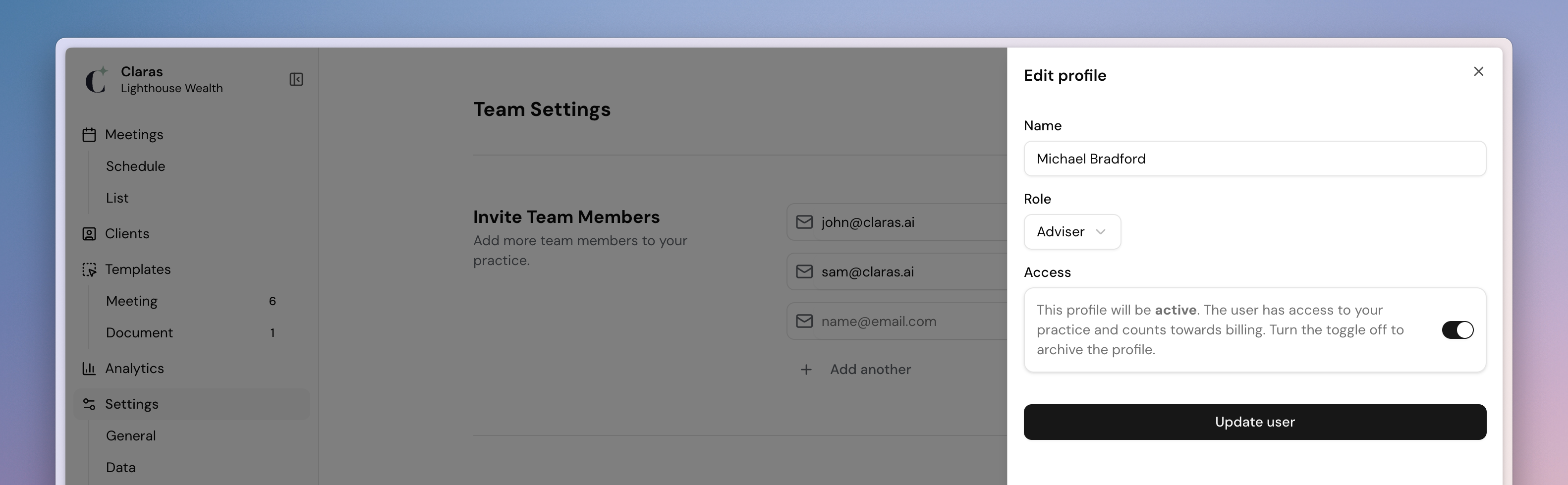
Claras maintains a record of inactive team members and their link to past meetings
FAQ
Do I need the Unlimited plan to invite team members?
No. Inviting team members is available on both the Unlimited and Pay as you go plans. See Our Pricing Explained for plan details.
Can a Practice Manager manage clients?
No. A Practice Manager can manage practice settings, templates, and team access, but cannot directly manage client records. Upgrade to an assistant to manage clients.
What happens to client profiles when an adviser's role is changed to assistant?
The former adviser remains listed as the adviser contact on any client profiles they were assigned to until another adviser is assigned to those clients. They also stay associated with any historical meetings they facilitated.
Next
Set up your profile, to help Claras understand you and your practice.
Last updated 31st August 2026 by Connor