Salesforce
This guide explains how to connect Claras to your Salesforce Financial Services Cloud (FSC) instance to automatically sync client data.
Only Owners and Managers can connect or disconnect the Salesforce integration.
Overview
The Salesforce integration keeps client information synchronised between Salesforce and Claras without manual data entry. Claras reads Household Accounts from Salesforce and creates corresponding client records, so your client list stays current as your CRM data changes.
This integration is designed for practices using Salesforce Financial Services Cloud with the standard Household data model. Salesforce acts as the source of truth, and all client data flows one way, from Salesforce into Claras.
How It Works
When you connect Salesforce, Claras automatically imports Household Accounts assigned to advisers in your practice. The sync runs throughout the day to capture changes made in Salesforce.
What Gets Synced
Claras reads the following data from your Salesforce instance:
Salesforce Object | Claras Field | Description |
|---|---|---|
Household Account Name | Client name | The name of the household |
Contact email addresses | Client emails | All email addresses from contacts linked to the household |
Account Owner | Assigned adviser | The adviser responsible for this client |
Account ID | CRM ID | Used to maintain the link between systems |
Sync Schedule
Claras syncs client data at three points:
When an adviser joins - All households owned by that adviser are imported immediately
Throughout the day - Changes are detected every five minutes during business hours (7am–7pm AEST, weekdays)
Overnight - A full reconciliation runs daily at midnight AEST to catch any missed updates
How Clients Are Matched
When importing a household, Claras determines whether to update an existing client or create a new one:
CRM ID match - If a client already has the Salesforce Account ID stored, Claras updates that client
Email match - If any email addresses overlap with an existing client (that has no CRM ID), Claras links and updates that client
Name match - If the household name exactly matches a client assigned to the same adviser (with no CRM ID or emails), Claras links that client
No match - Claras creates a new client record
After linking, the Salesforce Account ID is stored on the client to ensure consistent matching on future syncs.
Adviser Assignment
Clients are only imported when their Salesforce Account Owner exists as an adviser in Claras. The integration matches advisers by their email address, so the same email must be used in both Salesforce and Claras.
If a household's owner changes in Salesforce, Claras reassigns the client to the new adviser on the next sync (provided the new owner exists in Claras).
Connecting Salesforce
The Salesforce connection is practice-wide. One connection covers all advisers in your practice.
To connect:
Navigate to Settings → General
Scroll to the "Integrations" section
Click Connect next to Salesforce
Sign in to your Salesforce account and authorise access
Once connected, Claras begins importing households for all advisers in your practice. The initial sync may take a few minutes depending on the number of clients.
Working with Synced Clients
Identifying Synced Clients
Synced clients display a link icon in your clients list. Hover over this icon to see the Salesforce Account ID.
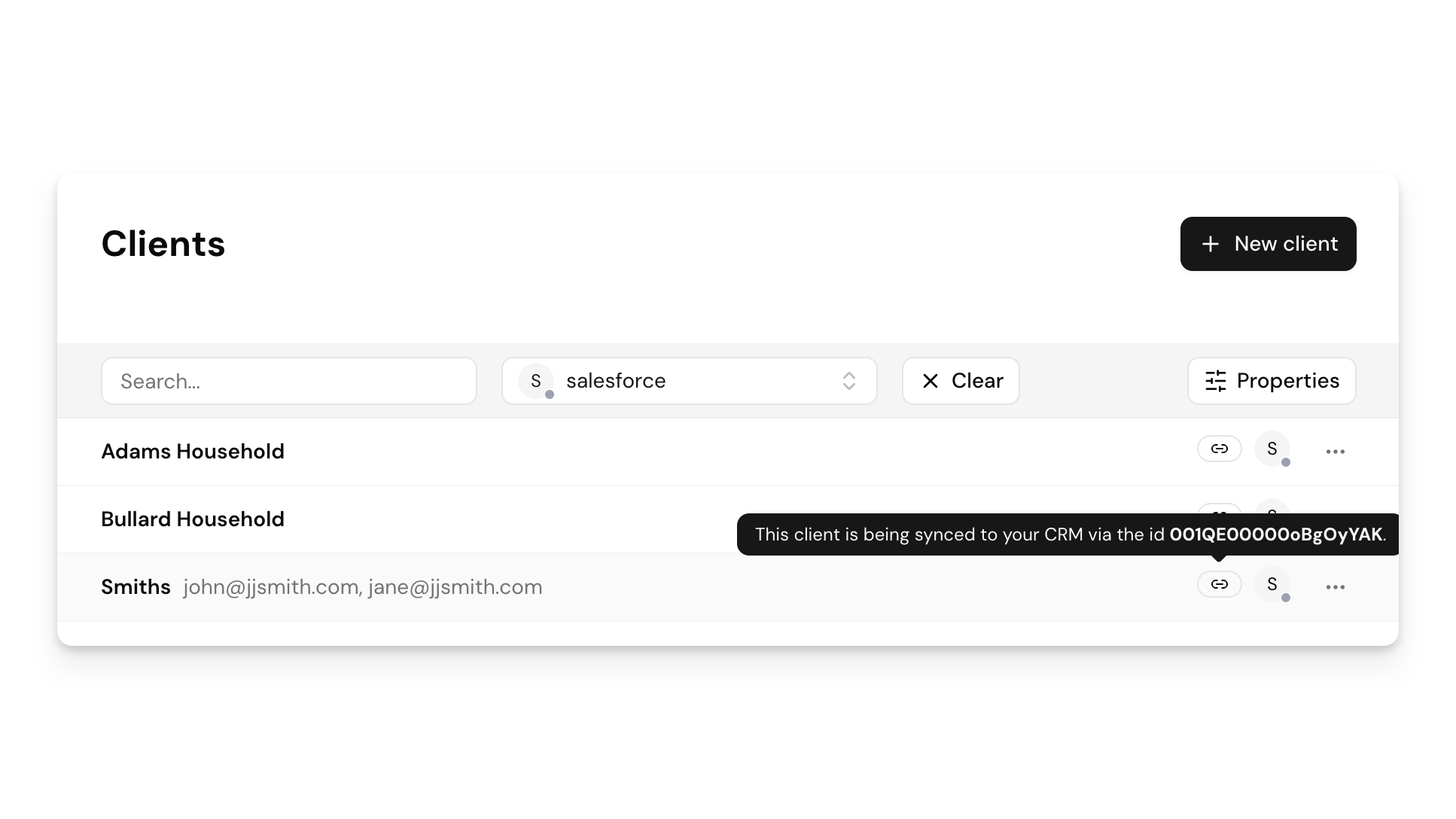
You can also search for clients using their CRM ID, which is helpful when cross-referencing between systems.
Editing Synced Clients
Client records synced from Salesforce cannot be edited in Claras. When you open a synced client's details, the form fields are disabled and a message explains that changes must be made in Salesforce.
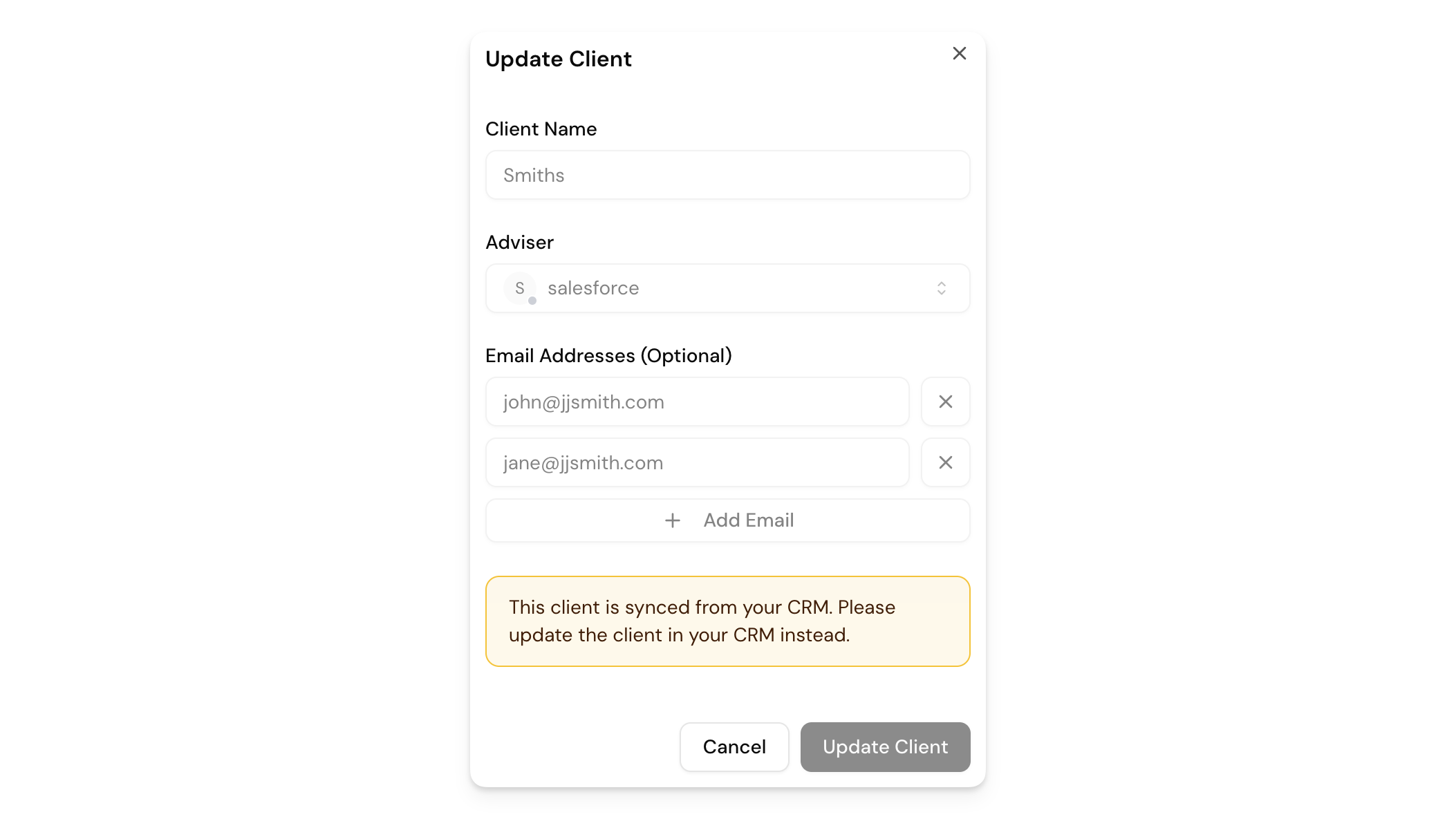
This protects data integrity as any changes you made in Claras would be overwritten the next time Claras syncs with Salesforce, which could cause confusion.
Viewing CRM Details
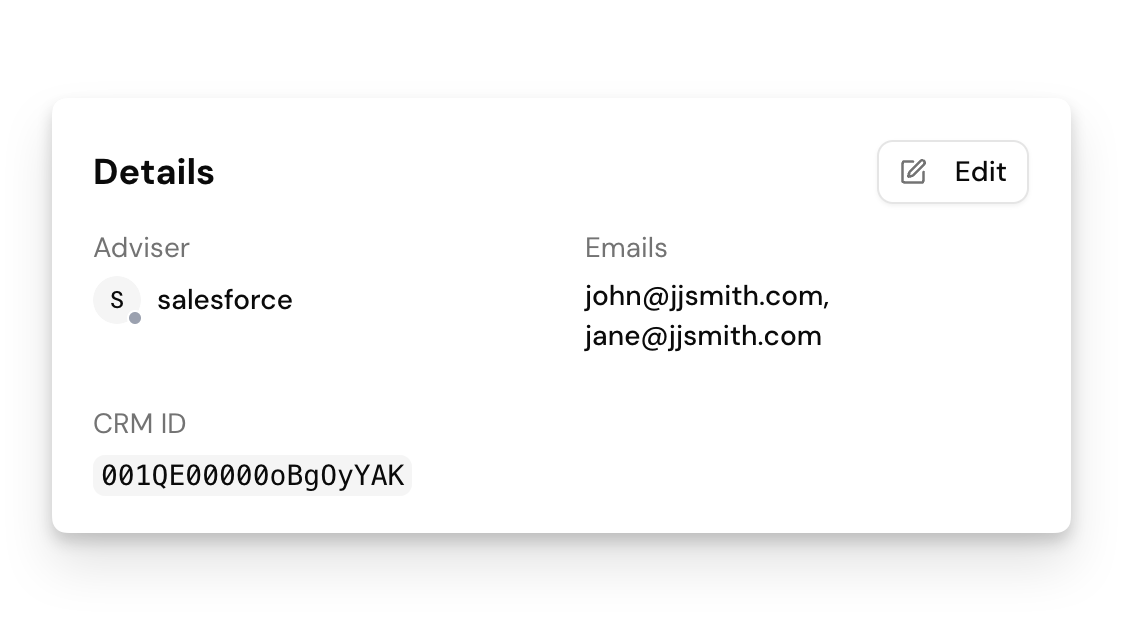
The client details panel displays a "CRM ID" field for synced clients, showing the Salesforce Account ID. This helps you quickly locate the corresponding record in Salesforce.
Disconnecting Salesforce
To disconnect:
Navigate to Settings → General
Scroll to the "Integrations" section
Click Disconnect next to Salesforce
Disconnecting stops future syncs but does not delete existing client data. Clients that were synced will retain their CRM ID, but you can now edit them in Claras.
Salesforce Admin Setup
For organisations that want to enforce least-privilege access, we recommend creating a dedicated Integration User with read-only permissions. Salesforce's api scope grants broad API access, but actual operations are controlled by the user's permissions. A restricted Integration User enforces read-only access at the Salesforce level.
Create a Permission Set
Create a new Permission Set with the following object permissions:
Object | Read | Create | Edit | Delete |
|---|---|---|---|---|
Account | ✓ | - | - | - |
Contact | ✓ | - | - | - |
User | ✓ | - | - | - |
AccountContactRelation | ✓ | - | - | - |
For Field-Level Security, grant Read access to only the required fields:
Account:
Id,Name,LastModifiedDate,OwnerId,RecordTypeIdContact:
Id,Name,Email,LastModifiedDateUser:
Id,EmailAccountContactRelation:
Id,AccountId,ContactId,IsActive,LastModifiedDate
Create an Integration User
Create a new Salesforce User for the integration (e.g., "Claras Integration")
Assign a minimal Profile (such as "Minimum Access - Salesforce")
Assign the Permission Set you created above
Ensure the user has visibility to Household Account records through your sharing model
Authorise with the Integration User
When connecting Claras to Salesforce, sign in as this Integration User rather than a personal admin account. The integration will then operate with only the permissions granted to that user.
This approach provides:
Audit trail: API calls are logged against a dedicated integration account
Least privilege: The integration cannot access objects or fields beyond what you explicitly permit
Easy revocation: Deactivate the Integration User to immediately revoke access
Security & Data Access
This section provides technical details for IT and security teams evaluating the integration.
Authentication
Claras uses Salesforce's standard OAuth 2.0 authorisation code flow for secure authentication. When you connect, you sign in directly with Salesforce. Claras never sees or stores your Salesforce password.
The connection uses refresh tokens to maintain access. Access tokens are short-lived (two hours) and automatically refreshed when needed. If a refresh fails, Claras will prompt you to reconnect.
OAuth Scopes
Claras requests the following OAuth scopes:
Scope | Purpose |
|---|---|
| Access Salesforce REST APIs to query Account and Contact data |
| Maintain the connection without requiring re-authentication |
See "Salesforce Admin Setup" above for guidance on enforcing read-only access.
API Calls
Claras uses the Salesforce REST API (v64.0) exclusively for read operations. All queries use SOQL (Salesforce Object Query Language) against the standard FSC data model.
The integration makes the following types of API calls:
Household queries - Retrieve Account records where RecordType.DeveloperName = 'Household'
Contact queries - Retrieve Contact data via AccountContactRelation junction records
Modified record queries - Identify records changed since the last sync using LastModifiedDate filters
Claras does not use Salesforce's Bulk API, Streaming API, or any write operations.
Data Read
Claras only reads data from Salesforce. It never creates, updates, or deletes records in your CRM. The integration queries:
Account records with RecordType "Household" (standard FSC data model)
Contact records linked to those households via AccountContactRelation
User records to match Account Owners to advisers by email
Claras accesses only the following fields:
Object | Fields Accessed |
|---|---|
Account |
|
Account.Owner |
|
Contact |
|
AccountContactRelation |
|
Data Storage
Imported client data is stored in the Claras database as part of your practice's data. This includes:
Client name (from Household Account Name)
Email addresses (from linked Contacts)
CRM ID (Salesforce Account ID)
Assigned adviser
No raw Salesforce API responses, query logs, or additional metadata are retained beyond what is needed for client records.
Token Storage
OAuth tokens are stored securely in the Claras database and associated with your practice. The following are retained:
Access token (encrypted)
Refresh token (encrypted)
Salesforce instance URL
Token expiry timestamp
Tokens are automatically deleted when you disconnect the integration. The connection is practice-wide. Individual advisers do not have separate Salesforce tokens.
Frequently Asked Questions
Why can't I see the Integrations section in Settings?
The Salesforce integration is currently in limited availability. If you don't see the Integrations section, contact support to request access for your practice.
Why aren't my clients appearing in Claras?
Clients are only imported when their Salesforce Account Owner exists as an adviser in Claras with the same email address. Check that:
The adviser has been added to your Claras practice
Their email address in Claras matches their Salesforce User email exactly
The Account's RecordType is "Household" (standard FSC model)
What happens if I change a client's email in Salesforce?
Claras detects Contact email changes during incremental syncs. The client's email list in Claras will be updated to reflect all current emails from linked Contacts on the next sync.
Can I manually trigger a sync?
Syncs run automatically throughout the day. If you need an immediate sync after making changes in Salesforce, contact support.
What Salesforce editions are supported?
The integration is designed for Salesforce Financial Services Cloud using the standard Household data model. Other editions may work if they use the same Account RecordType structure.
What happens to synced clients if we disconnect?
Disconnecting stops future syncs but does not delete any client data. Previously synced clients retain their CRM ID, allowing you to reconnect later without losing the link. After disconnecting, you can edit these clients directly in Claras.
How does Claras handle Salesforce API limits?
Incremental syncs only query modified records, minimising API consumption. The integration is designed to work within standard Salesforce API limits for enterprise customers.
Last updated 13th July 2026 by Connor