
Share Templates With Your Licensee Network
This guide explains how to approve practices into your licensee network and share your meeting and document templates with them.
This guide is for licensee accounts. You need full settings access on your licensee account to review requests and share templates.
Overview
A licensee account lets you publish your official meeting and document templates to the practices that operate under your AFSL. Practices keep using Claras as normal, and your templates appear in their template lists next to their own. You stay in control of the content, so when you update a shared template, every connected practice works from the new version.
Sharing happens in two stages, and both have to happen before a practice sees anything:
Connect a practice by approving its access request.
Share each template you want your network to use.
A practice you approve sees nothing until you share at least one template. In the same way, a template you share only reaches practices you have approved. Practices never share their client information or their own templates with you.
Review practice requests
A practice asks to join your network from its own account by selecting your AFSL and requesting access. Each request then waits for your decision on the Practices page, which is your home page in Claras.
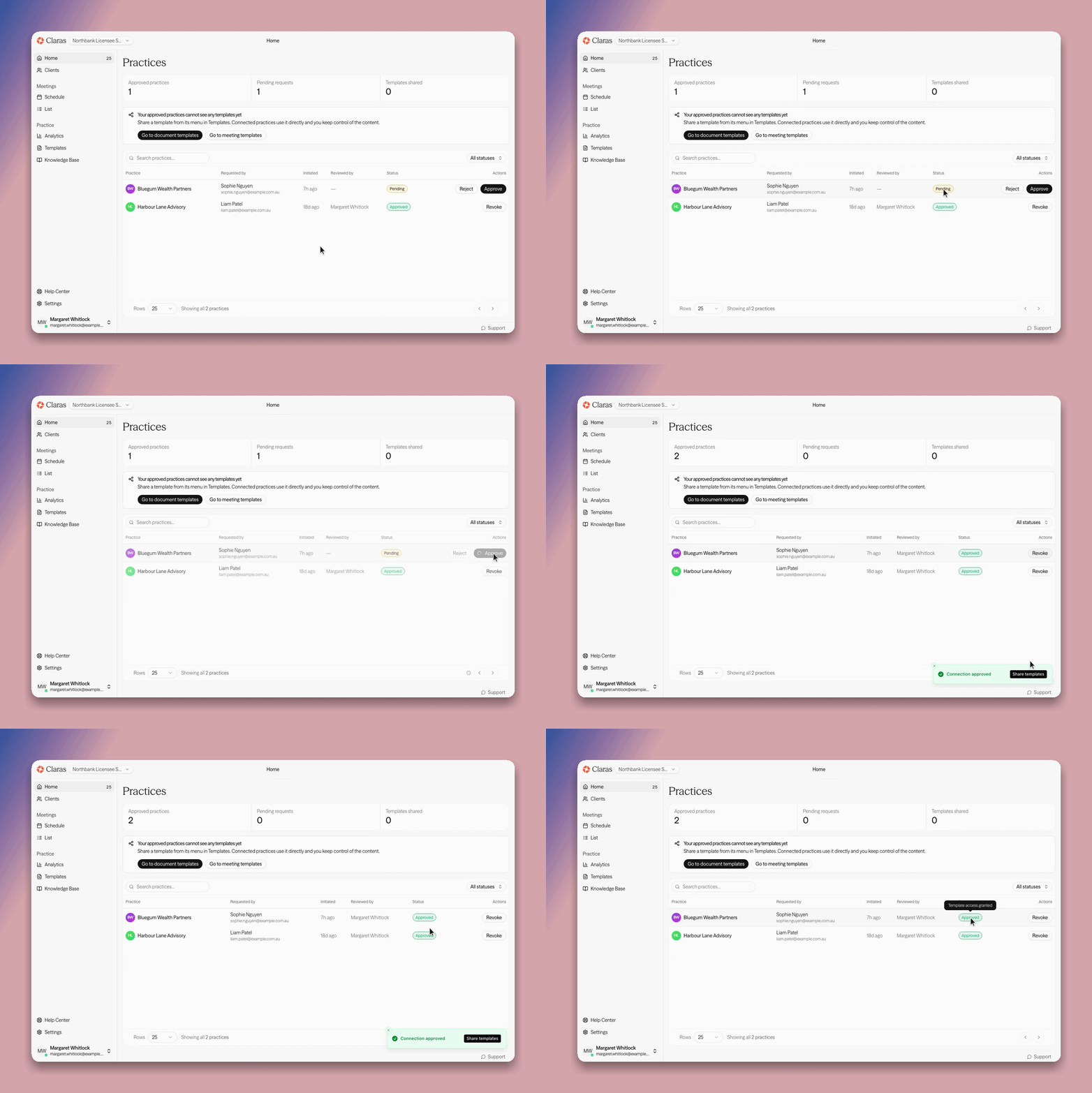
The table lists every practice that has named one of your AFSLs, with who requested access, when, who reviewed it, and its current status. Use the "Status" filter or search by practice name to find a request.
The summary above the table shows how many practices are approved, how many requests are waiting, and how many templates you share with your network. While you have approved practices and share nothing, Claras shows a reminder there with links to your templates.
Approve connects the practice. Every template you already share appears in that practice's template lists.
Reject declines the request. The practice can request access again later.
Revoke ends an approved connection. The practice can no longer start new meetings or documents with your templates, although work it already created is kept.
Approving a practice does not give it any templates on its own. If you have not shared a template yet, the practice sees none of your templates until you do.
Share a template with your network
You can share any meeting or document template your licensee account owns. There are two ways to open the sharing settings:
From Templates, click
⋮on the template card and choose Share with network.From the template editor, click Network sharing in the header.
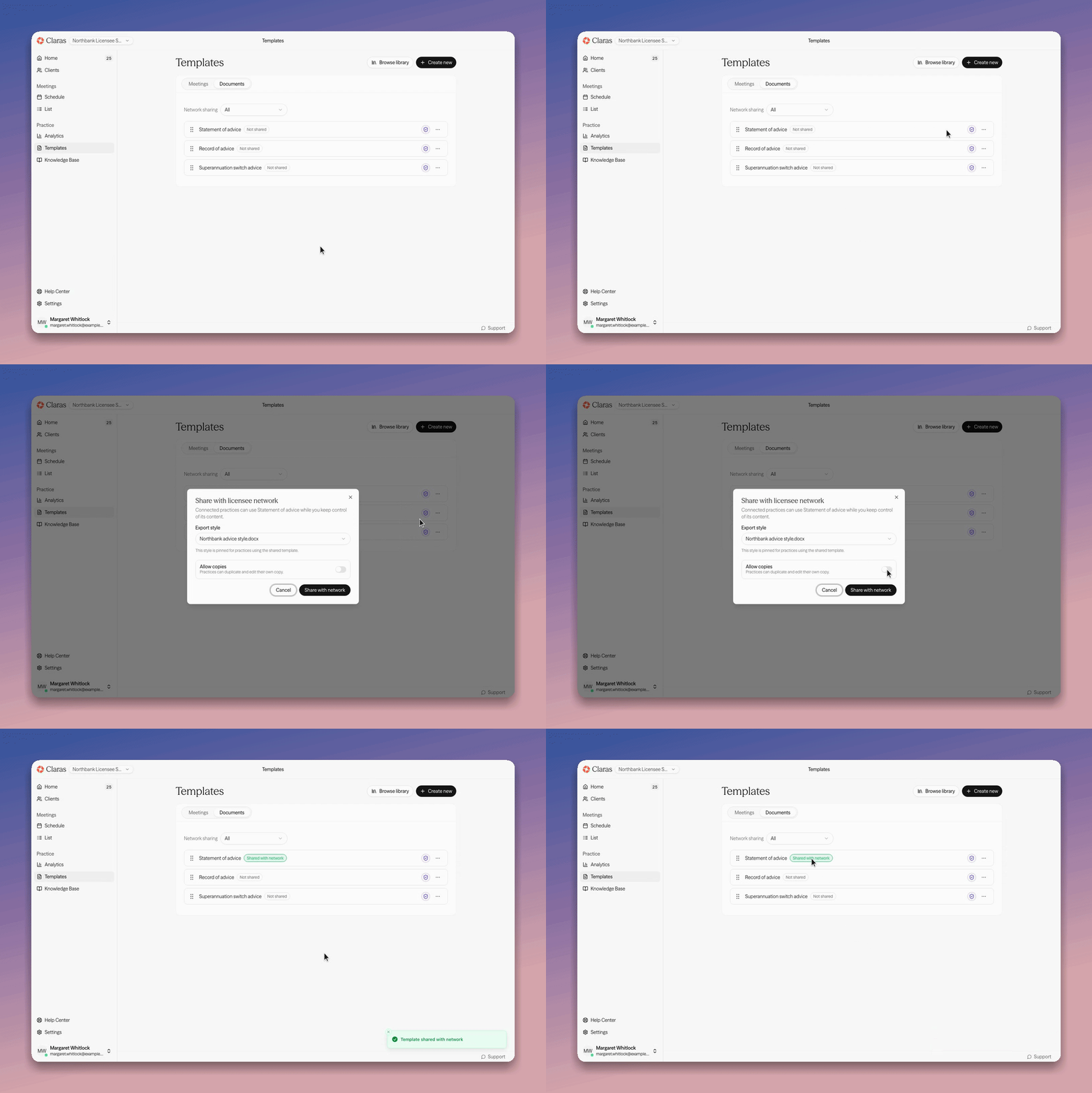
Choose the settings below, then click Share with network. The template appears for every approved practice within a few moments.
Each template card on your licensee account shows "Shared with network" or "Not shared", and the "Network sharing" filter narrows the list to one or the other, so you can see at a glance what your network can use.
Export style
The export style you choose is pinned to the shared template, so file notes and documents your network creates with it export with your branding and formatting. If you have no export style yet, shared work exports with default formatting until you add one under Branding.
A practice can still choose to apply its own branding to your template by turning on "Use our export style" on the template. This only changes how its exports look. The template content stays yours.
Allow copies
By default, connected practices can use your template but cannot change it. Turn on "Allow copies" when you are happy for practices to duplicate the template and edit their own version.
A copy belongs to the practice that made it. As a result, your later updates do not flow into that copy, and the copy stays with the practice even if you stop sharing or revoke its connection. Leave "Allow copies" off for templates that must stay word for word, such as compliance wording.
See which practices use a template
Open a shared template in the editor to see the "Network practices" card. It tells you how many practices can use the template, how many have used it, and when it was last used. Click View practices to open the full list, with each practice's uses, last used date and whether it can duplicate the template. The list puts the most recently active practices first, and the search box narrows it by practice name when your network is large.
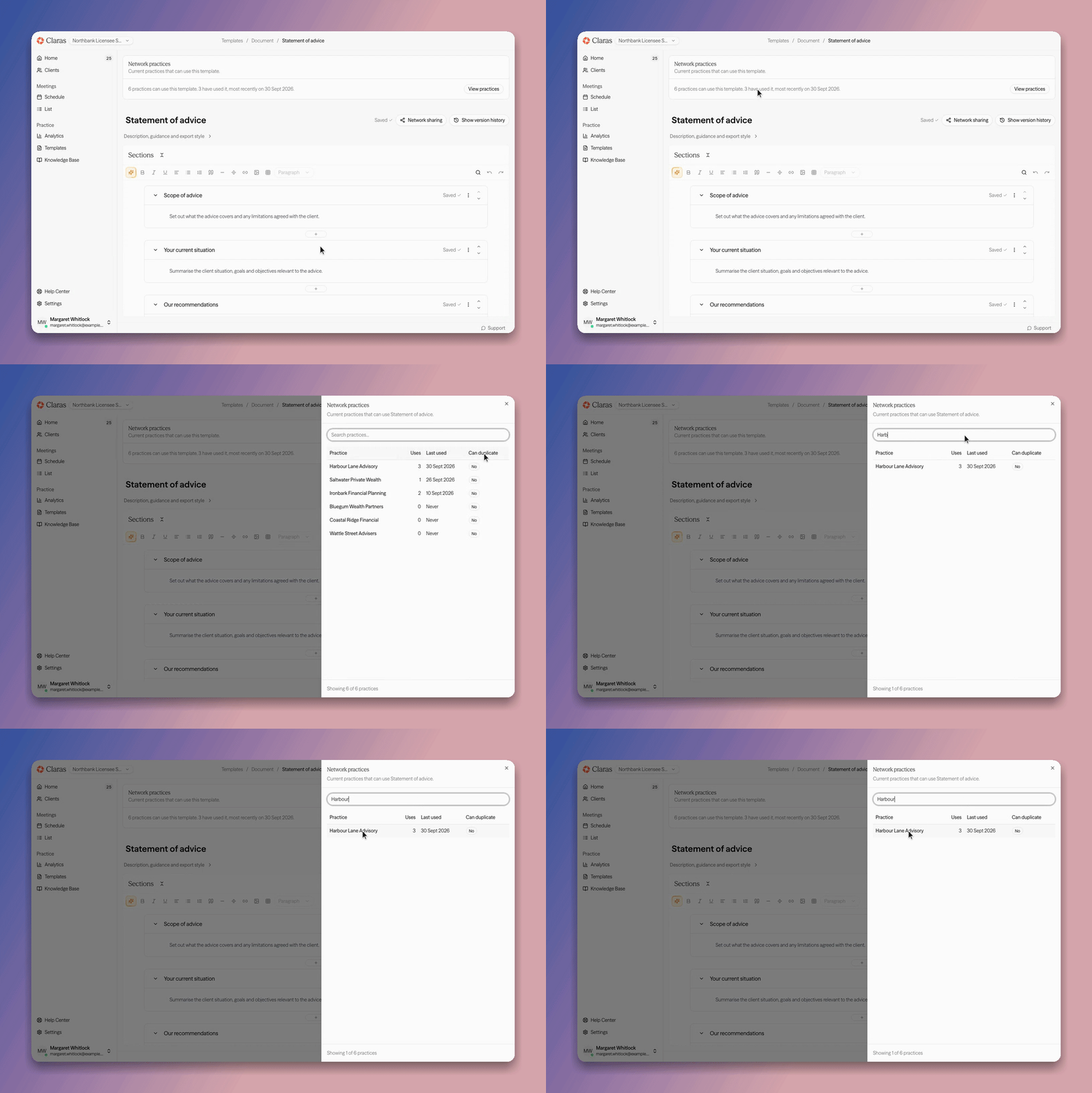
Practices are told when they request access that you can see which of your templates they use and when. You never see their clients, file notes or documents.
Stop sharing a template
Open the sharing settings again from the card menu or the Network sharing button, click Stop sharing, and confirm. Connected practices can no longer start new work with the template, and it disappears from their template lists. Meetings and documents they already created with it stay available to them.
To change the export style or "Allow copies" on a template you already share, stop sharing it, then share it again with the new settings.
What connected practices see
A shared template appears in the practice's Templates → Meetings or Templates → Documents list with an "Official" badge and a "Shared by" line naming your licensee. A "New" badge also shows for the first seven days after the template reaches the practice. Practices can select the template when they create a meeting or generate a document, just like their own templates.
The template opens read only for the practice. If you turned on "Allow copies", the practice can duplicate it and edit the copy. Otherwise, the practice uses your version exactly as you wrote it.
FAQ
A practice says it cannot see my templates
Check two things. First, the practice must show as "Approved" on your Practices page. Second, the template must be shared with your network, which you can confirm from its card menu or the Network sharing button. Both are needed before the template appears.
A practice is not on my Practices page
A practice only appears after it selects your AFSL in its own account. Ask the practice to open Templates → Licensee, select your AFSL, and click Save and request access.
Can a practice share its templates with me?
No. Sharing only works from a licensee to its network. Practices keep full ownership of their own templates.
Last updated 2nd October 2026 by Tsogt