
Connect Claude to Claras
This guide explains how to connect Claude.ai to Claras with a sign-in connector so Claude can work with your practice data.
Connected agents must be on for your practice first. You also need a Claude plan that allows custom connectors. On Team or Enterprise Claude, an Owner may need to add the connector for the organisation before members connect.
Claude reads your client information as it is stored, including full meeting transcripts and client records. Claras redaction does not apply to it, and Claras data commitments do not follow that information into your Claude account. See Client information and privacy before you connect.
Overview
Claude connects to Claras over a secure sign-in flow. You do not create a personal access token for claude.ai. After you approve access (with multi-factor authentication), Claude can call Claras tools under your profile.
Before you start
Connected agents enabled for your practice.
A Claras account with multi-factor authentication set up.
A Claude plan that supports custom remote connectors (see Connected Agents for plan notes).
Add Claras in Claude
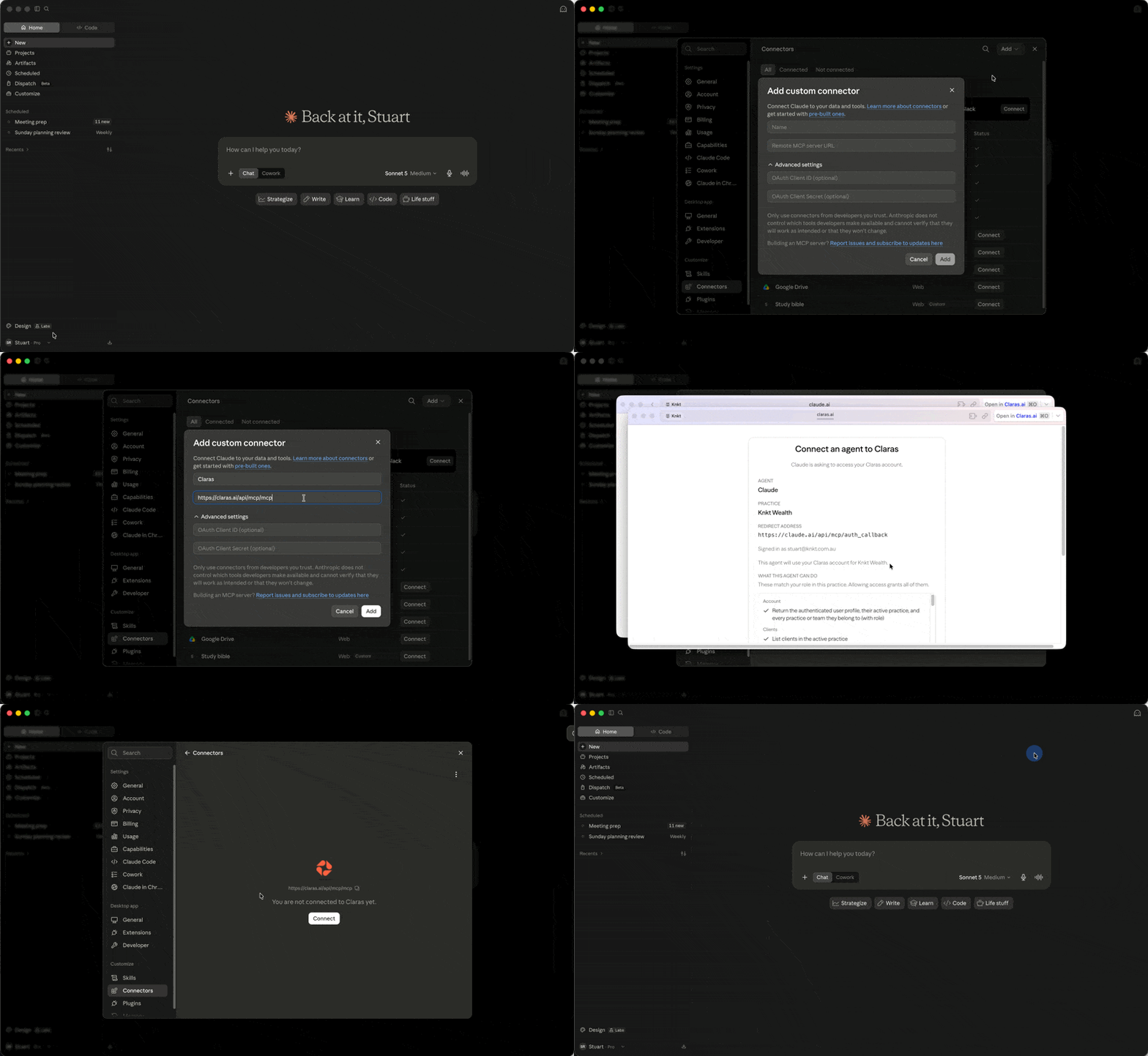
Steps for individual Pro and Max plans (Team and Enterprise Owners add the connector under organisation settings first):
Open Claude and go to Settings → Connectors (or organisation connectors for Team and Enterprise Owners).
Choose to add a custom connector (often labelled custom or web).
Set the name to Claras (or your practice name) and the server URL to
https://claras.ai/api/mcp/mcp.Save the connector, then choose Connect.
Complete the Claras sign-in and multi-factor challenge.
On the Claras consent screen, confirm the practice name and the agent details, then approve.
Use Claras in a chat
Start a new chat in Claude.
Enable the Claras connector for that conversation if Claude asks you to choose connectors.
Ask Claude to work with Claras in plain language. For example: list my clients named Smith, create a meeting for that client using the Annual Review template, or export the file note as a Word document after processing.
If something goes wrong
Connected agents not enabled appears or tools fail after sign-in: connected agents is off for your practice. Contact support.
Consent or multi-factor fails: finish MFA on your Claras account, then try Connect again.
Connector URL errors: use exactly
https://claras.ai/api/mcp/mcpwith no trailing path beyond/mcp.Team or Enterprise cannot see the connector: ask a Claude Owner to add it under organisation connectors first.
Related
Last updated 30th July 2026 by Tsogt