
Connected Agents
This guide explains how to connect AI assistants such as Claude, ChatGPT, and Microsoft Copilot to Claras as connected agents.
Connected agents is being rolled out one practice at a time. Ask Claras support to turn it on for your practice, then Settings → Connected agents appears for everyone in the practice.
Connecting an agent sends real client information out of Claras to the AI product you connect, exactly as it is stored. Read Client information and privacy below before you connect, and check with your licensee if you are unsure.
Overview
Connected agents let you use Claras from the AI tools you already work in. Under your own Claras profile, an assistant can list clients, create meetings, submit file notes, generate documents, and export DOCX files. Actions use the same practice permissions you have in the web app.
Claras stays the system of record. Agents call Claras tools; they do not replace review, finalisation, or advice processes in the app.
What you can do
Clients list, open, create, update, and delete clients (within your access).
Meetings create a meeting for a named client, paste a transcript or attach a recording, submit processing, poll status, finalise, and export a file note DOCX.
Documents create advice documents from templates, set instructions, generate, finalise, and export DOCX.
Materials upload files and attach them as client materials (PDF, DOCX, spreadsheets, images, and similar). Audio for meetings uses the recording path, not attachments.
Templates list and open meeting and document templates so create tools can resolve the right template id. Agents do not author or improve templates; that stays in Claras.
How connection works
There are two connection styles:
Sign in (OAuth) for cloud assistants such as Claude.ai and ChatGPT. You approve access in the browser with multi-factor authentication. You do not paste a secret into the chat product.
Personal access token for tools that cannot use Claras sign-in, including Claude Code and Microsoft Copilot Studio. You create the token in Claras, copy it once, and configure it in that tool.
The Claras connector URL is https://claras.ai/api/mcp/mcp. Cloud products use this URL when you add a custom connector.
Plan requirements for third-party tools
Claras does not sell Claude or ChatGPT plans. Whether a host can add a custom connector depends on that vendor. Requirements change; confirm on the vendor help centre before you roll out to a team.
Claude (claude.ai and Claude Desktop)
Custom remote connectors are available on Free, Pro, Max, Team, and Enterprise plans (per Anthropic’s connector documentation).
Free plans are limited to one custom connector; paid plans allow more.
On Team and Enterprise, an Owner usually adds the connector for the organisation first. Each member then connects with their own Claras sign-in.
See Anthropic’s guide: Get started with custom connectors using remote MCP.
ChatGPT
Custom connectors are not available on the free ChatGPT tier in practice; a paid plan is required.
OpenAI has rolled out developer mode and custom connectors across Plus, Pro, Business, Enterprise, and Edu over time. Exact limits (including which plans can run write tools) still move; check OpenAI’s current connector documentation for your workspace.
Workspace admins may need to allow custom connectors before members can add Claras.
Start from OpenAI’s connector help: Connectors in ChatGPT.
Connect Microsoft Copilot
Microsoft 365 Copilot in Teams, Word, and microsoft365.com has no setting for a custom connector URL. You add Claras in Copilot Studio, on an agent you build, and people chat with that agent.
Copilot Studio cannot complete the Claras sign-in. Use a personal access token instead. The token belongs to one adviser, so everyone who chats with that agent acts as the person who created it.
In Claras, open Settings → Connected agents. If connected agents is off, a practice owner turns on Allow connected agents.
Choose Create token, name it, and copy the token. Claras shows it once. It starts with
claras_mcp_.In Copilot Studio, open the agent and add a tool. Choose New tool, then Model Context Protocol. On the newer agent screen the same choice is Build → Tools, then Add, then Model Context Protocol (MCP).
Set the name to Claras and write a short description of what the server does, so the agent knows when to call it. Set the server URL to
https://claras.ai/api/mcp/mcp.Set authentication to "API key", the type to "Header", and the header name to
Authorization.Create the connection. For the key, enter the word Bearer, a space, then the token.
Bearer claras_mcp_…
Add the tool to the agent, then ask it to list your clients.
Choose API key. OAuth and dynamic discovery fail, because Copilot Studio’s sign-in callback is not accepted by Claras.
Microsoft’s setup guide: Connect your agent to an existing MCP server.
Turn connected agents on
Claras enables connected agents for your practice as part of the rollout. Contact support and we will turn it on.
Once it is on, Settings → Connected agents appears in the settings menu for everyone in the practice. Team members create their own tokens there, and a practice owner controls Practice access at the bottom of that page.
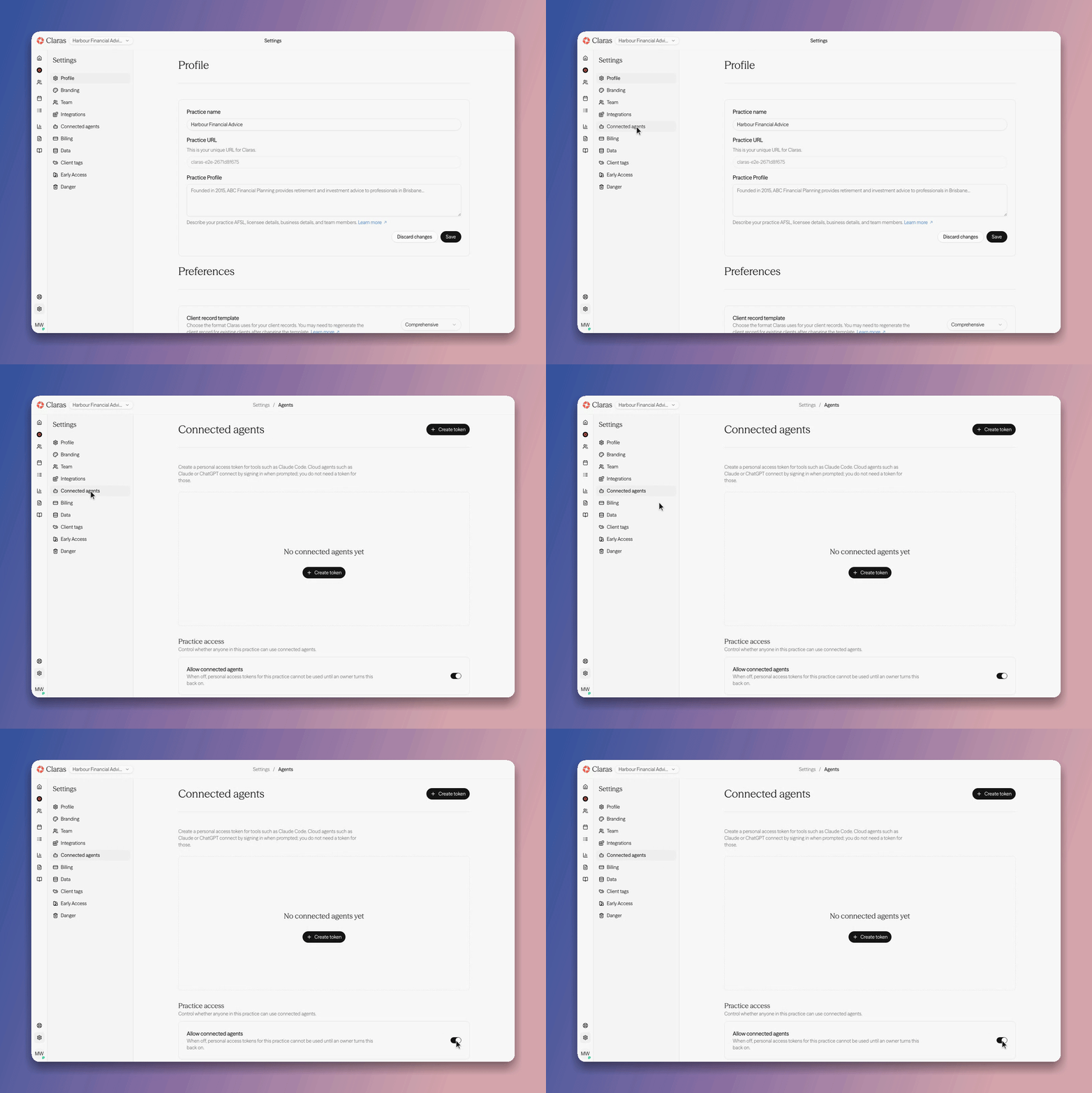
Turning Allow connected agents off hides the Connected agents page from the settings menu. Contact support to turn it back on.
Client information and privacy
Connected agents work by handing your client information to the AI product you connect. That is the point of the feature, and it is the main thing to weigh up before you turn it on.
What an agent can read
An agent acting as you can read the same client information you can see in Claras, in full and exactly as it is stored:
Client names, their details, and the whole client record.
Meeting transcripts, word for word.
File notes, advice documents, and their Word exports.
Attachments and client materials you have uploaded.
Claras redaction does not cover this
The Redact Sensitive Information setting in Settings → General swaps client personal information for placeholders before Claras sends content to its own AI providers. It does not change what a connected agent reads. When Claude, ChatGPT, or Copilot asks Claras for a transcript, it gets the real text, whether or not redaction is on.
See Redaction for what that setting does cover.
Your AI product, your agreement
Claras does not use your data to train AI models, does not share it with third parties, holds zero data retention agreements with its own service providers, and stores your data in Australia. Those commitments cover Claras. They do not follow your client information into Claude, ChatGPT, or Copilot.
Once information reaches the AI product you connected, that vendor’s terms decide how long it is kept, where it is stored, and whether it is used to improve their models. Read their terms and check the data controls in their settings before you connect a practice.
Working safely
Ask for what you need. A question about one meeting does not need the whole client record pulled into the chat.
Treat the chat history as a copy of the client information it contains. Delete conversations you no longer need.
Check your licensee policy and your privacy collection statement before you roll this out across a practice. Sending client information to an overseas AI provider may need disclosure.
Prefer a paid or business plan with the vendor, where data controls and retention settings are usually stronger than consumer tiers.
Access and control
Connected agents act as you. They only see practices and records you can access, under your role.
Cloud connectors use a short-lived sign-in. Personal access tokens are long-lived secrets: store them like passwords, set an expiry, and revoke them when someone leaves or a laptop is lost.
A practice owner can turn connected agents off for the whole practice at any time. Every personal access token and connector for the practice stops working immediately.
Agents can create and change client data. Review tool prompts carefully, especially deletes and finalise steps.
Next guides
Last updated 12th October 2026 by Connor