
Filing to Xplan
In this article
When you finalise a file note or a document, Claras emails a Word copy to that client's filing address in Xplan. Xplan files an inbound email against the client entity it was addressed to, so the copy ends up in that entity's file.
You add that address to the client's Emails field. Claras sends for clients that have one, and skips clients that don't. Nothing else needs switching on.
Claras sends the email in the background after you finalise, so you don't wait on it. The same send runs when Claras finalises a file note for you, which it does when it tidies up a client's processed meetings.
The email
The message is from xplan@team.claras.ai. The subject is the title, then the client name, for example "Annual review file note - Margaret Chen". The body is one line with the work, the client, and the date it was finalised.
The attachment is the Word file you get from the download button, built the same way, so the two copies match. A file note uses the practice's default export style. A document uses the style its template resolves to. The contents page and the page numbers are included. The date in the file name uses the timezone of the person who finalised it. See Custom Export Styles.
The address
An Xplan filing address looks like this:
104233@northbridge.xplan.iress.com.au
The number is the client entity in Xplan. Copy the address from the entity you want the work filed against. Claras accepts any address on a site under xplan.iress.com.au.
An address on your own domain is treated as a normal email, and Claras does not send to it. Custom filing domains are not supported yet. If your site uses one, contact support and we can look at it.
Adding the address
You need full access to Clients to change a client's email addresses.
Open the client and add the address in the Emails row, the same way you add any other email. See Manage Clients. Other addresses can stay in that list. Claras picks out the Xplan one, and the client does not receive this message.
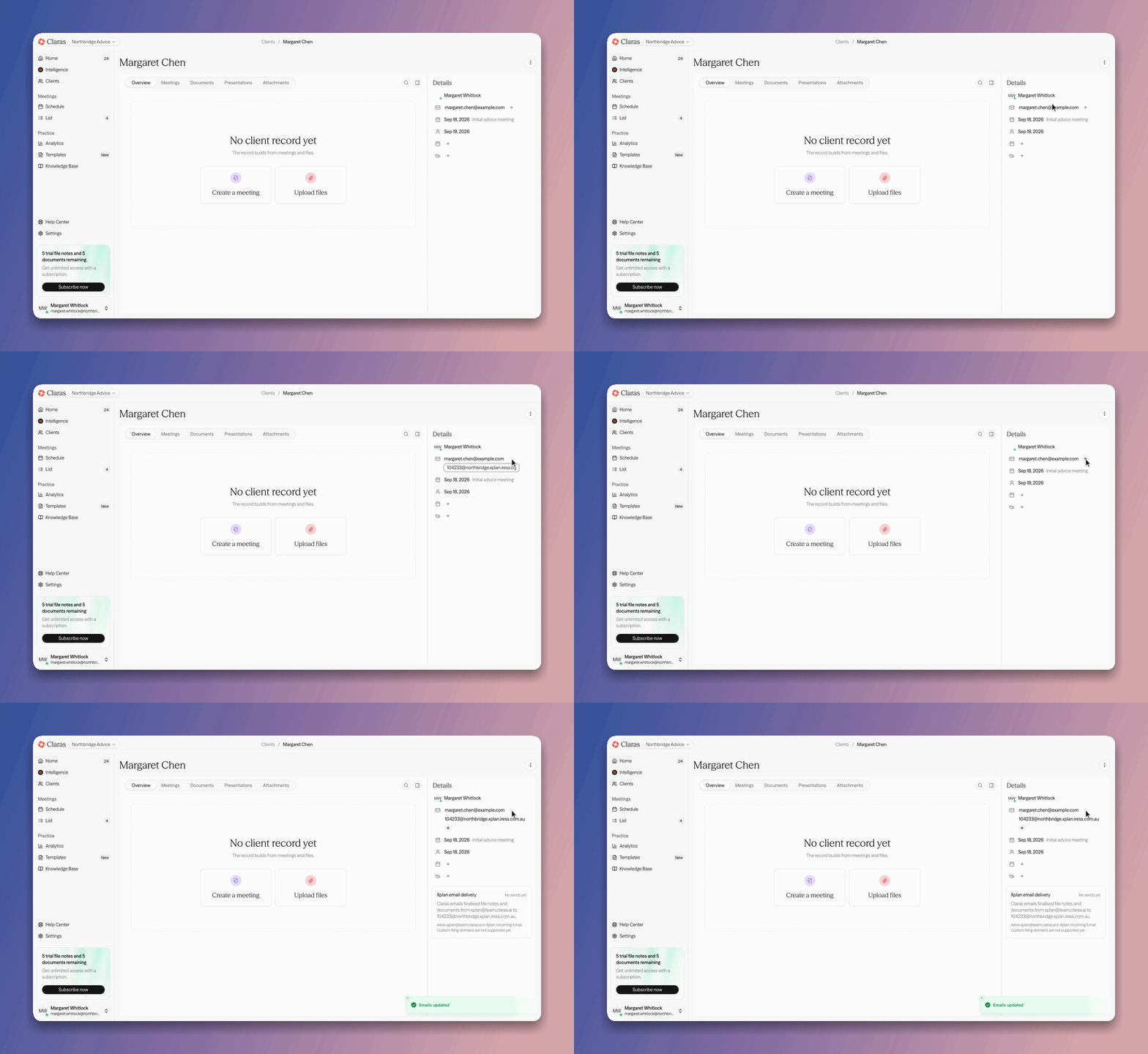
Once the address is saved, the Xplan email delivery card shows on the client. It shows the address Claras will send to, and later how the last send went.
If the client is synced from a CRM, the Emails field is read-only in Claras. Add the address on the linked contact in the CRM. It comes across on the next sync. See Salesforce.
Let Xplan accept the sender
Xplan only accepts email from senders your site allows. Add xplan@team.claras.ai to Incoming Email in Xplan before you finalise work for that client.
If that sender is not allowed, Xplan throws the email away. Claras still shows the send as successful, because the message left Claras and was accepted for delivery.
One filing address
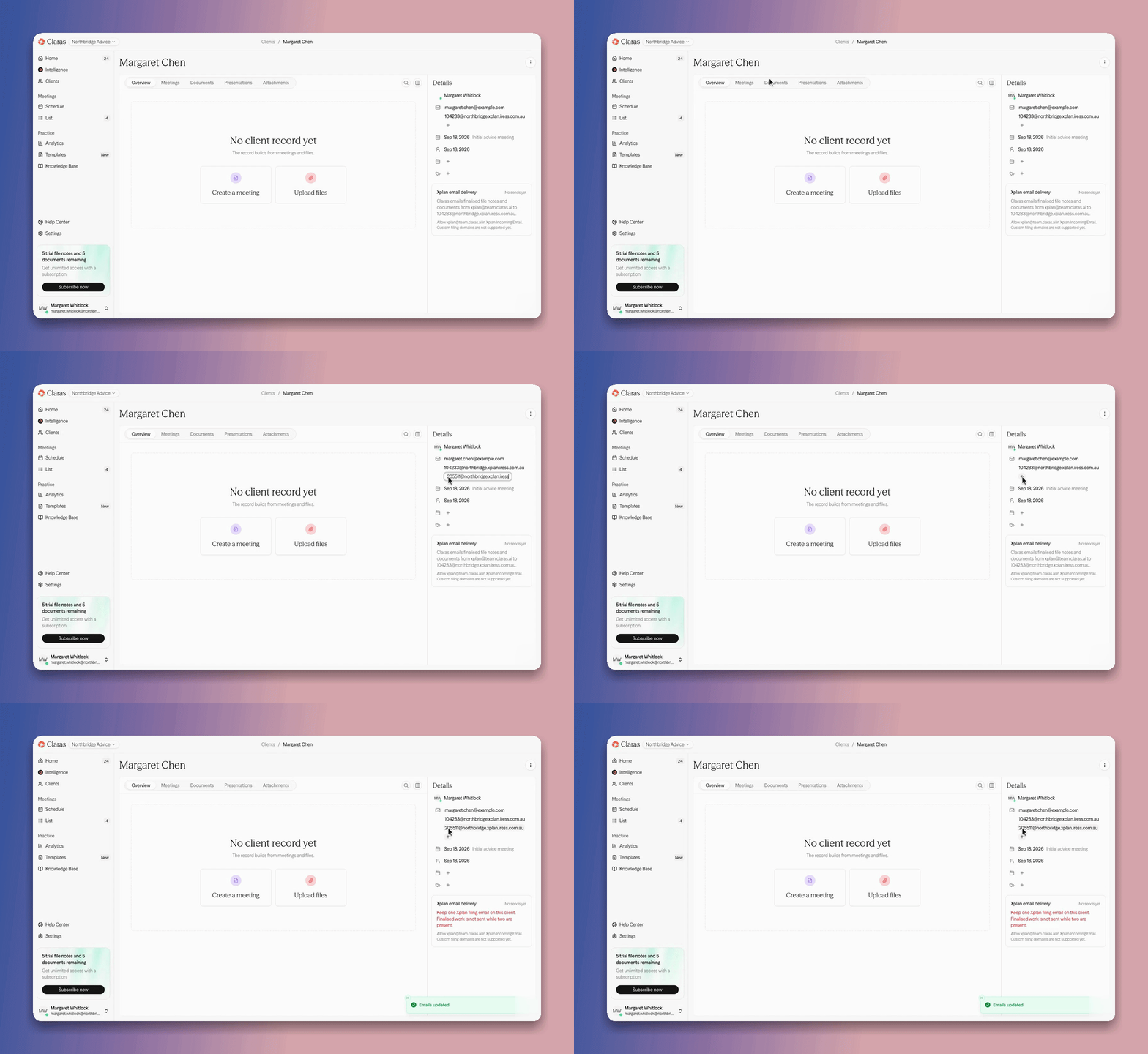
A client can have one filing address. If two Xplan addresses are on the client, Claras does not pick one. It sends nothing, and the card says so. Remove the address you don't want. The next time you finalise, the email goes out.
Each finalisation sends one email. If Claras has to retry a step, it sees that the email already went and does not send another. There is no resend button. To send again, reopen the file note or document and finalise it again. That is a new finalisation, so it sends again. See Review the File Note and Email.
If you delete the file note or document before the email has gone out, Claras has nothing to attach, so it does not send.
The card
The card on the client shows the latest send.
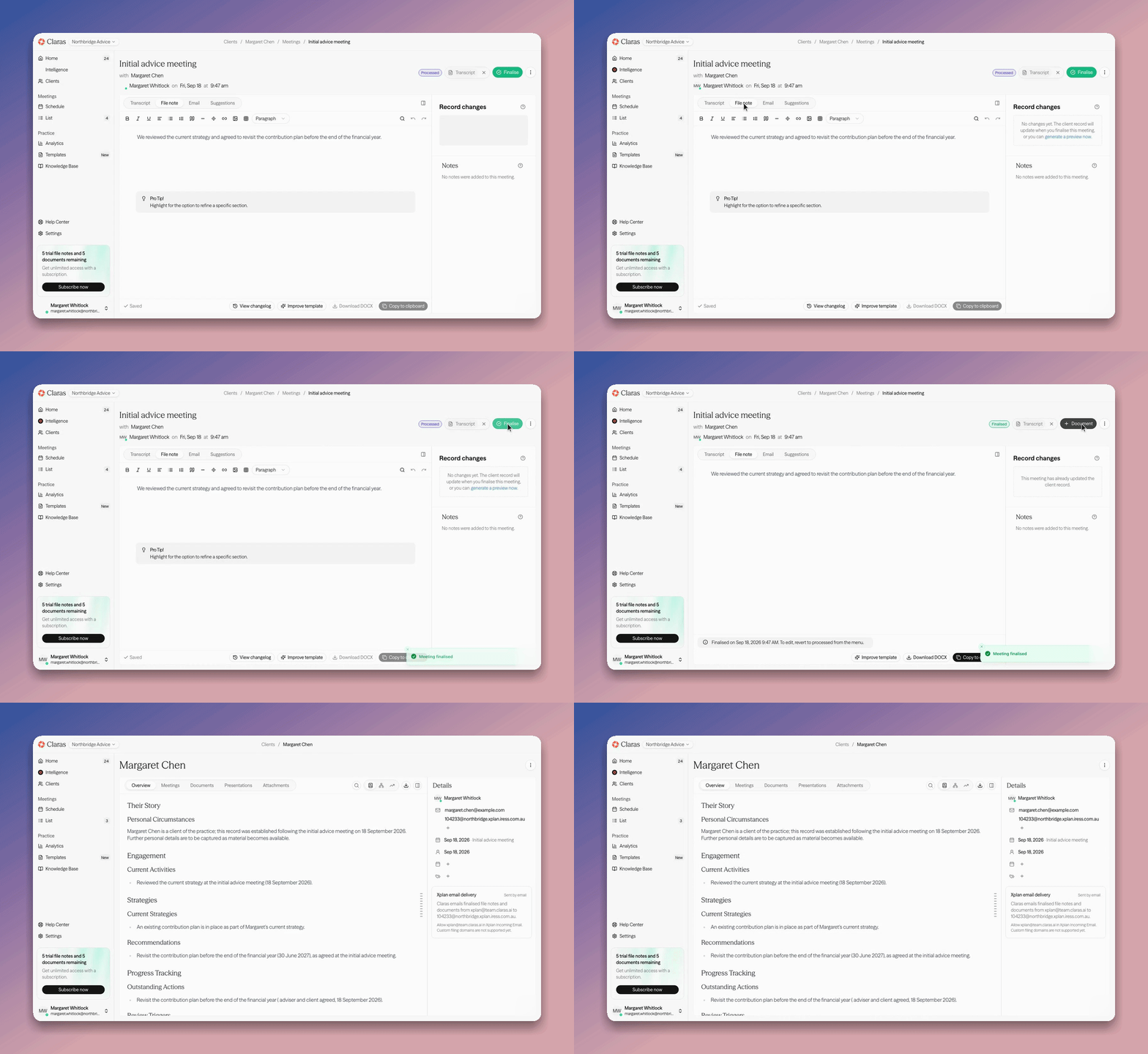
No sends yet The address is saved, and nothing has been finalised for this client since then.
Sent by email The email was accepted for delivery.
Could not send The send failed. The reason is under the status.
Sent by email means the email left Claras. It does not mean the file is in Xplan yet. If the card says the send worked and the file is not in Xplan, check that xplan@team.claras.ai is allowed, then check the address is the entity you wanted.
If the client has no filing address, Claras sends nothing and shows no card. Finalising still works as it always has.
Last updated 7th October 2026 by Connor