
Creating Document Templates
This guide explains how to create document templates tailored to your practice's advice documents and compliance requirements.
To follow these steps, you'll need to be an Owner or Manager.
Overview
Custom document templates give you full control over how your advice documents are structured, matching your practice's compliance language, section order, and formatting.
While Claras provides a Template Library with ready-to-use templates, creating your own ensures documents match your needs. The template generator uses your instructions to create a structured template with appropriate sections and formatting.
You can start from scratch with natural language instructions or convert existing templates by pasting content from Word or PDF documents. Once generated, templates are ready to preview, edit and use immediately.
Within a single practice, templates are available to your whole team. If your organisation uses multiple teams, see Sharing Templates Across Teams for how to share a template with selected teams.
Creating your first template
Navigate to Templates → Document templates and click Create new. You'll see two fields that tell Claras how to generate your template.
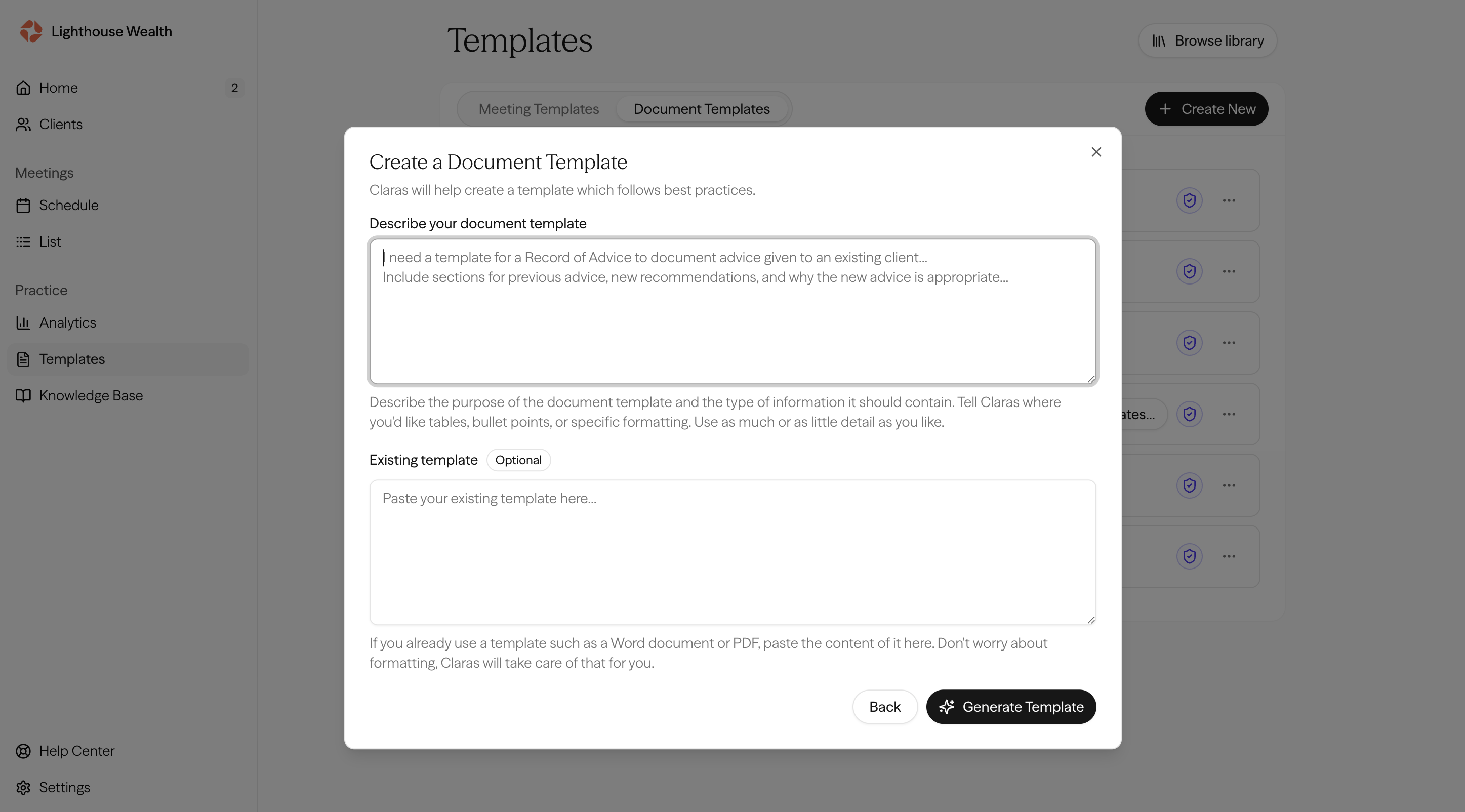
The top field is where you describe the purpose of the template. Write clear sentences explaining what the document should contain and how it should be structured.
Creating a template from scratch
When creating a template from scratch, your description should describe the document's purpose and the sections you need. Include details about what information each section should contain, whether they should use tables tables or specific formatting, and any standard wording that must appear.
Example 1: You need a way to check that the SOA your paraplanner returns matches the request you originally briefed. Use the following description to create a template that compares the two documents and surfaces any issues.
Create a comparison check that reviews the Paraplanner Request to the SOA, identifying gaps, inconsistencies, incorrect strategies and recommendations between the reference documents.
Example 2: You need a way to pre-vet advice documents produced in Claras, so they meet compliance and regulatory requirements. Use the following description to create a template that assesses a document and identifies any issues.
A compliance check that helps our advisers identify gaps, inconsistencies, missing evidence, and remediation actions across the document. It should include:
Executive summary
Evidence of best interest duty (BID) and appropriateness
Consistency checks across documents
Disclosure and compliance items
Implementation alignment
File note and record-keeping quality
Remediation plan
Recommendations
Converting existing templates
This is the fastest way to bring across your templates to Claras.
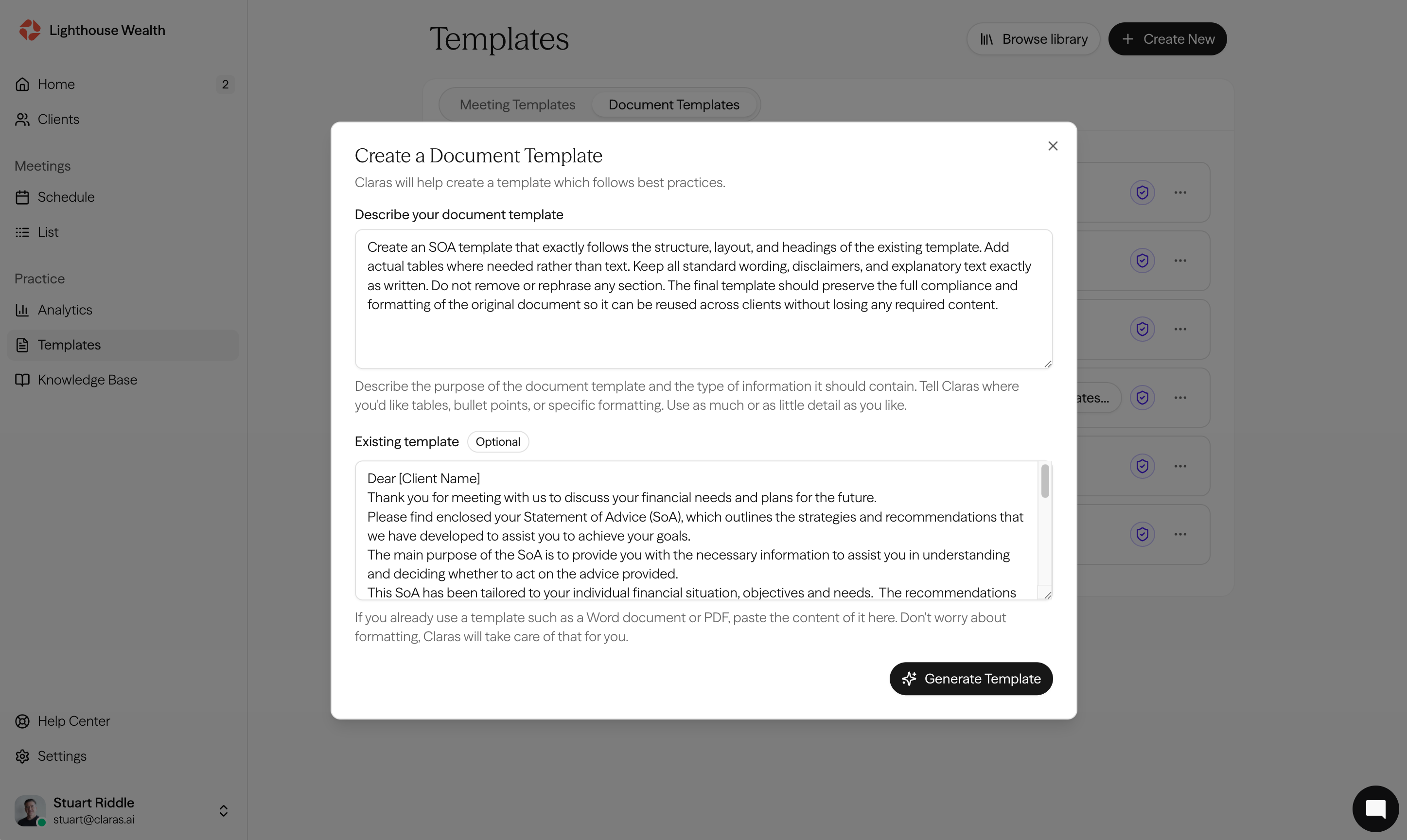
When converting an existing template, your description should focus on preserving the original structure and compliance content. For a Statement of Advice template, you could use:
Create an SOA template that exactly follows the structure, layout, and headings of the existing template. Add actual tables where needed rather than text. Keep all standard wording, disclaimers, and explanatory text exactly as written. Do not remove or rephrase any section. The final template should preserve the full compliance and formatting of the original document so it can be reused across clients without losing any required content.
This level of detail gives the generator clear direction about both the document structure and how closely to follow any existing template content you've provided.
Next, copy and paste the content of your existing Word template into the bottom section. The generator will recreate the structure while adapting it to work within Claras.
Using your new template
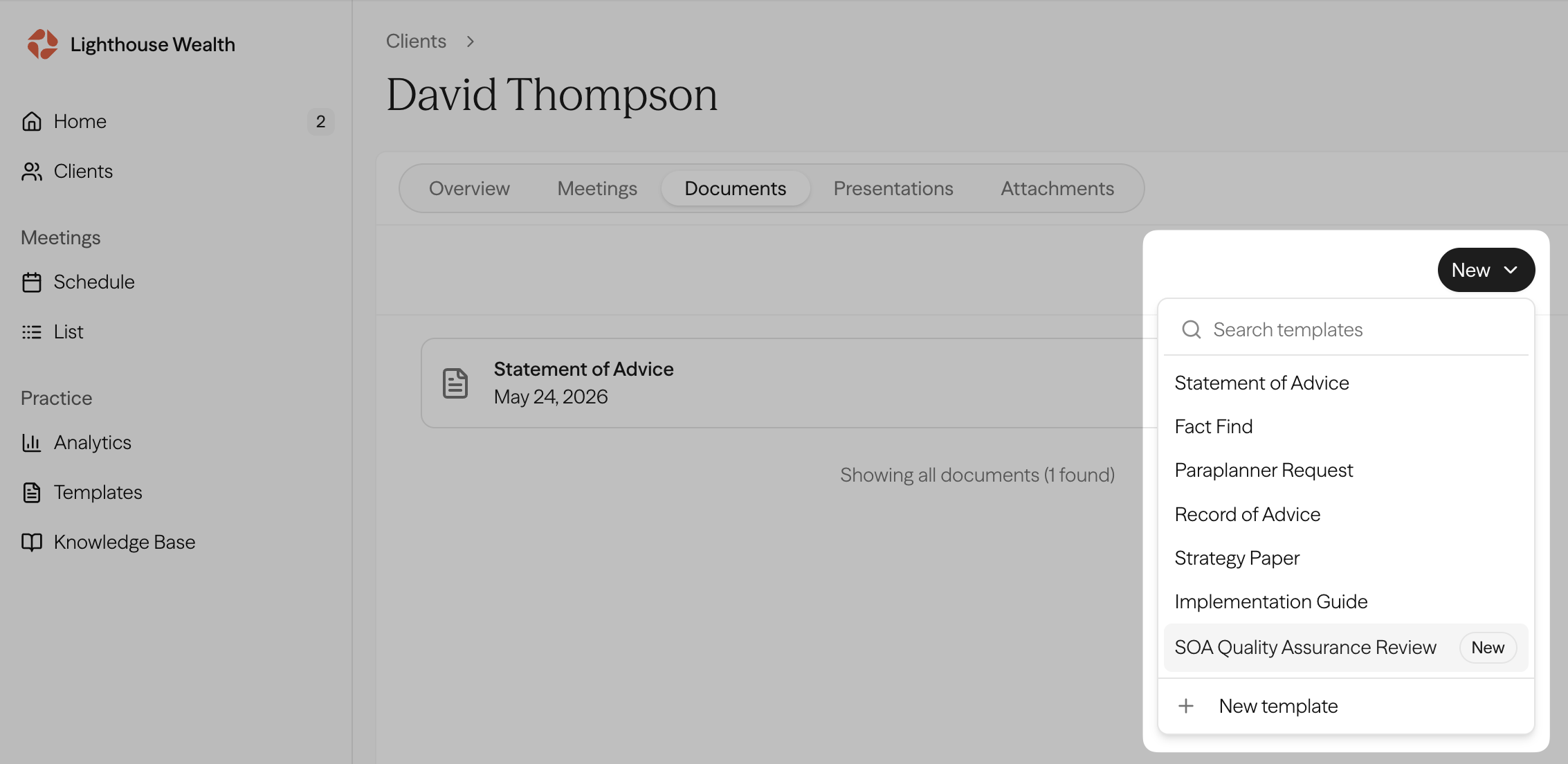
Creating and saving a template is separate from using the template to generate a document. Templates are managed in Templates → Document templates, but when you want to create a document from a template, you start from the client profile.
Go to Clients and open a client profile.
Select the Documents tab and click Document in the tab toolbar (or the compact + control on narrower layouts).
Select your template from the list. All templates your team has created or copied from the Template Library appear here.
Select the references you want Claras to use when generating the document. These include finalised file notes, uploaded attachments, and other documents on the client profile.
Click Start generating.
When testing a new template, pay attention to whether sections contain the expected information, formatting appears as intended, and all content is preserved. Testing with real client data reveals issues that might not be obvious from viewing the template alone, such as sections that capture too much or too little detail in practice.
For a detailed walkthrough of the full document creation process, including adding instructions and selecting references, see Create Advice Documents.
Iterate and improve
Capture feedback from your team and continually improve your template to optimise the output. Each refinement makes the template better suited to your practice's specific content and formatting requirements.
Learn how to improve your document templates.
Editing template content
The document template editor is designed for both guidance and locked wording. Text inside square brackets is a guidance block. Guidance tells Claras what to write for that part of the document from the selected client profile, file notes, attachments, documents, and Knowledge Base material.
Plain text outside square brackets is treated as ordinary instructions or examples that Claras can select from and adapt. That is the right default for most section outlines, including lists of common strategies or sample wording.
Pass fixed text through verbatim
Some wording must never change, such as an office phone number, AFSL, licensee name, or a required disclaimer. For those sections, turn on Pass fixed text through verbatim in the section settings.
When that option is on:
Plain text outside square brackets is locked into the generated document exactly as written.
Only text in square brackets is filled by Claras.
Keep locked wording in its own paragraph, separated by a blank line from any guidance. Leave the option off unless you need that lock. Turning it on for a section full of example wording will paste those examples into every document.
Add blocks and page breaks
When editing a template, use the block menu or slash commands to add structure. You can add headings, lists, tables, guidance blocks, page breaks, and images without leaving the editor.
Page breaks are included when you export the finished document to DOCX. This makes page breaks useful for cover pages, signature pages, appendices, and other sections that should start on a fresh page.
Insert an image with the Image control in the editor toolbar. Images stay in the template and in documents generated from it, including when you reload or export to DOCX. Practice-wide reference files still belong in the Knowledge Base, and client files belong under Attachments on the client page.
Use guidance blocks
Guidance blocks tell Claras how to approach a section without adding that guidance as client-facing text. They are useful when a section needs judgement, such as comparing strategies, checking evidence, or writing in a specific compliance style.
Keep guidance specific. For example, instead of writing "summarise the strategy", explain what the section should consider, which reference material matters, and what the adviser needs to review before finalising the document.
Export style
When you edit a document template, the "Export style" field chooses which Word branding is used when documents from that template are exported as DOCX.
Leave it on the practice default unless this template needs a different letterhead or look. Upload and reorder styles under Settings → Branding. Full detail is in Custom export styles.
Last updated 23rd July 2026 by Connor